Tips & hidden gems
Mobile tips & gestures
The five-page swipe strip, the pull-down glance drawer, Zen mode, and the timer controls in your notification shade.
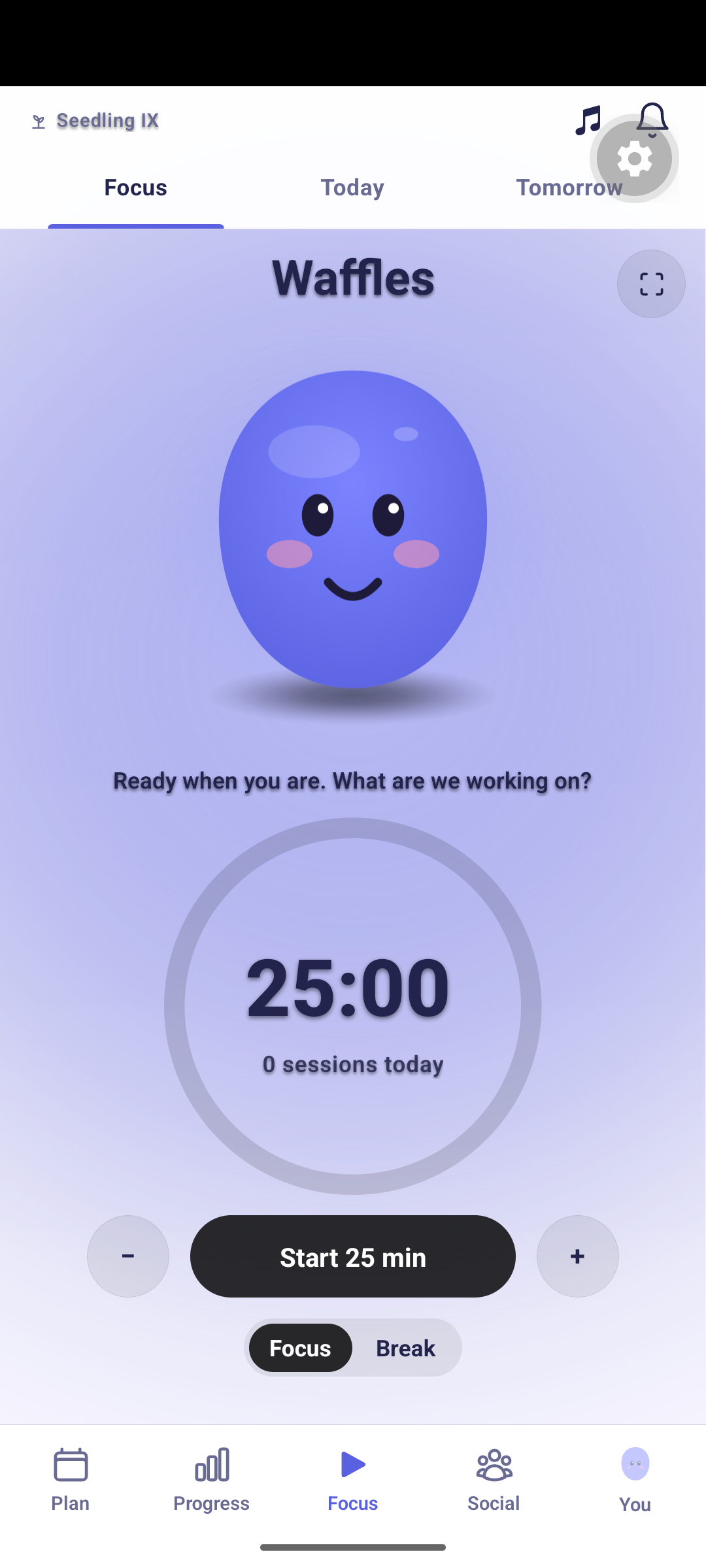
Yappie on your phone is one long horizontal strip. Five pages sit side by side, Plan · Progress · Focus · Social · You, with Focus in the middle where your thumb already is. Once the swipe makes sense, the rest of the app opens up.
The whole app is one continuous sideways swipe. Every page's inner tabs are part of the same strip, so you can go from your projects to your settings without lifting your thumb.
Getting around
Swipe through everything
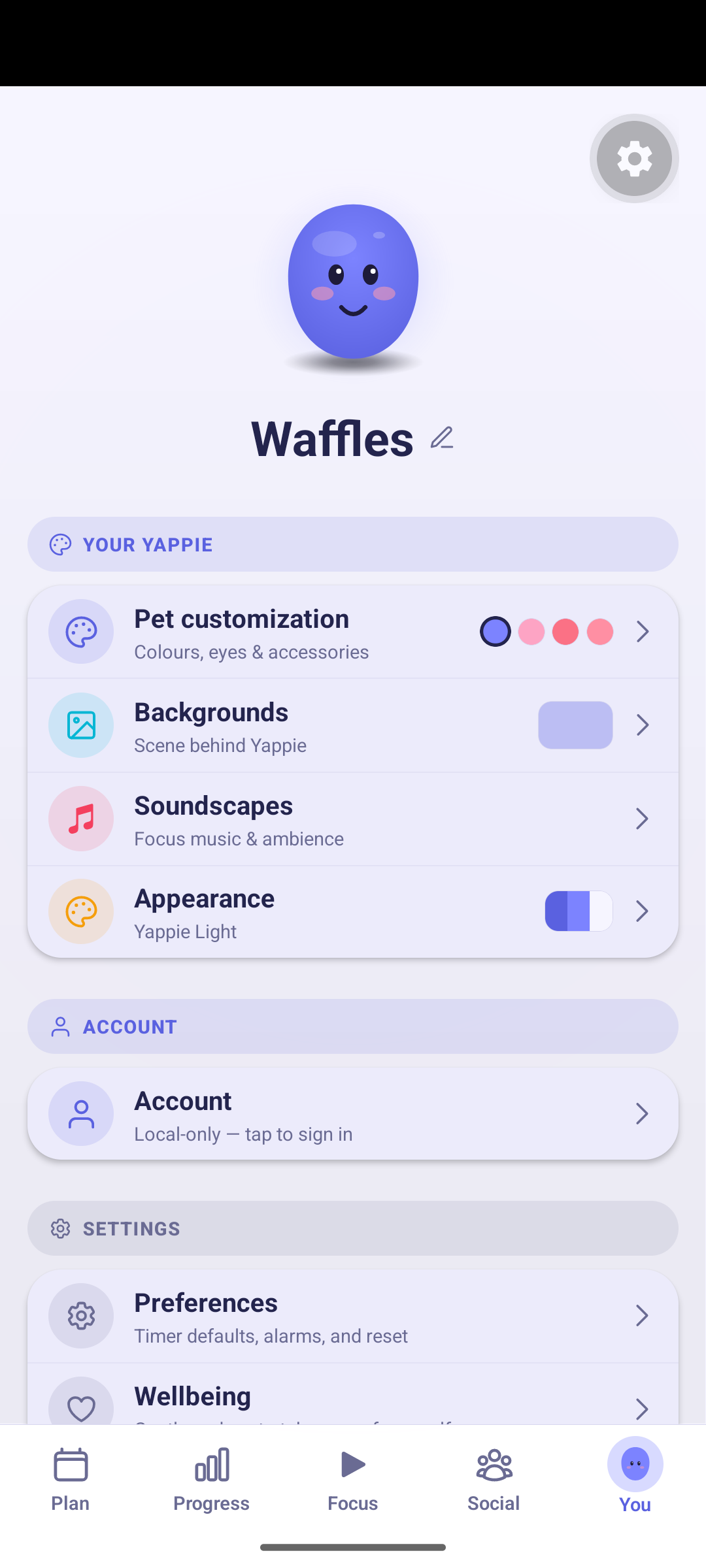
Each of the five pages has its own tabs, and they are stops on the same strip rather than a second layer. Swiping through Plan takes you across Projects · Recurring · History, then straight on into Progress with My sky · Growth · Charts · Glories, then Focus with Focus · Today · Tomorrow, then Social with Friends · Groups, then You with Customizations · Account · Settings.
Fifteen stops in all, and Focus is the exact middle with seven on either side. The bottom bar's tint and the You tab's little pet follow your finger as you go, so you always know roughly where you are.
Tap a tab you are already on to start over
A tap on the bottom bar always lands on that page's first stop, not the one you left. Leave Plan on History, wander off to Focus, tap Plan again and you are back on Projects. It is a reset, on purpose.
Swipe back out of a detail page
Detail pages slide in from the right. On iOS, swipe back from anywhere on the page. On Android, pan rightward across the screen. On a page that has its own tabs, like a task or a group, the content area belongs to those tabs, so back moves to the left edge on iOS and to a swipe past the first tab everywhere.
Either way, if you are in the middle of selecting several tasks, the same gesture clears the selection first and leaves the page where it is.
Chrome that gets out of the way
Scroll a list down and the header and the bottom bar slide away together. Scroll up, or come back near the top, and they both return. While you are selecting tasks they stay put.
For your first week the bottom bar shows labels under the icons; after that it settles into icons only, once the shapes have had time to stick.
The Focus stage
Pull down for the glance drawer
On the Focus page, drag down on Yappie and the line under it, the way you would pull down your phone's own quick settings. A drawer comes down with the minutes you have focused today, your streak, and Yappie's energy bar, plus the things you can record by hand: Break, Physical, Social, and Time off while the day can still be declared off. A tap on the pet is still a pat, because a pan needs travel and a tap does not.
Pick one and its minute stepper slides in. Logging plays a checkmark in place with a line like "Break logged · 5 min · energy restored", then rolls the drawer back down. Tapping the stats pill at the top opens the same drawer, and the stats inside it are a shortcut through to Growth.
Zen mode
Tap the inward-arrows glyph in the top bar, to the left of the bell, for a stripped-back timer view: the pet steps away entirely and the ring grows to fill the space. A live co-focus pair stays on screen, because that is the part worth watching. Zen is kept on this device only and never syncs, and a rest day quietly wins over it.
Play with your pet
Tap to squish, tap several times quickly to set off a tickle, press and hold to poke a dent, and drag a cheek to stretch it like jelly. It plays along more calmly during a session, and it settles for a small acknowledgement if your phone is set to reduce motion.
Lists, tasks and steps
Long-press to select several
Long-press a task row to enter selection mode for that day, then tap to add and remove. Back, or a swipe back, cancels it.
Drag by the grip
Reordering lives on the grip alone, so a slow drag never opens the row by accident. Long-press the grip and move. Reordering turns off while a sort is active, and nothing crosses between the unfinished and completed groups.
A step opens its own drawer
Tap a step and its drawer comes up with everything you can do to it. Rename turns the title above into a field and raises the keyboard, so you edit it in place rather than in a separate box.
The task page has two panes
A task opens as a page with Details and Settings side by side. Swipe between them, and swipe again past the first one to leave the page altogether.
Touch, sheets and feedback
Small haptic taps confirm a pick, celebrate a finished task or session, and give you a firmer warning before something destructive. They follow your phone's reduce-motion setting.
The − and + buttons speed up if you hold them, which is worth knowing for timer lengths, alarm times, quiet hours, nudge intervals and log minutes.
Sheets have a grab handle: drag or fling down to dismiss, or tap the dimmed area behind them. Multi-pane drawers, like a task's ⋮ menu or the log shade, slide left and right inside themselves, and a back gesture pops one pane before it closes the whole thing.
Anything Yappie has to tell you comes up in one bottom drawer, one message at a time. Nothing disappears on its own, so a confirmation waits until you close it, and an error jumps ahead of whatever is queued behind it.
Pull down to refresh the Social lists, a group's page, Charts and Soundscapes, including after a catalogue fails to load.
From outside the app
While a session runs, Yappie posts a quiet notification with Stop and Pause or Resume on it, so you can drive the timer from the shade without opening anything. Wellbeing nudges arrive with Done and Not now for the same reason, and neither button pulls you into the app.
Tapping a task alarm opens that task. On Android, a home-screen widget shows your level and streak with a Focus 25 pill that opens Yappie and starts the session for you.
Two things to know
Some account work hands off to your browser: changing your email or phone, billing and plan changes, and deleting your account. Signing in, setting a password and turning two-step verification on or off all happen in the app.
And two things are not on the phone yet: the endless generative soundscapes are listed but do not play, and a group focus session shows as a plain list of who is inside rather than the drawn study room.
Next: Tips: desktop for the desktop set, and Working with tasks for the recipes behind the gestures above.
Last updated October 21, 2026