How-to guides
Focusing
Run a session, take a break, log the time you spend away from the timer, and use the two quieter views.
The timer is the middle of the Focus tab: your pet, a line of status text under it, and a countdown ring with a Start button. These recipes cover running a session, taking a break, logging the time you spend away from the screen, and the two quieter views. For how sessions are credited and why nothing is ever lost, see Focus sessions.
Run a session
Start, pause, stop
- Set the length with − and +. Hold either one to move faster.
- Press Start, which shows the length you picked.
- While it runs, use Pause and Resume, or Stop.
The clock lives in Yappie's background process, so it keeps counting while the window is hidden, while you sit on another tab, and while a menu page is open. Default lengths are 25 minutes of focus and 5 of break; Settings → General lets you set anything from 1 to 90 minutes of focus and 1 to 30 of break.
Stopping early is safe. A stint under a minute is treated as noise and nothing happens. Free focus goes to your Unsorted focus bank. Focus attached to a task splits that task into a finished part, ticked and credited, and a remaining part waiting for you.
Focus on a particular task or step
- In Today, expand a task, or a step, that has a time set.
- Click ▶. The tooltip reads "Focus on this together". If the item has no time yet, it tells you to set one first.
- Yappie jumps to the Focus tab with the ring already showing that item's minutes, and names it under the ring.
- Press Start.
To work loose again, click Detach beside the name. The session carries on; it stops being about that item.
Take a break
When a focus session ends, Yappie offers a break with a suggested length and two buttons, Skip and Start break. Short breaks are proposed at five to ten minutes depending on how long you focused; every fourth session offers a longer one, up to forty minutes. Adjust it with − and + before you start.
You can also start one whenever you like: with the timer idle and nothing attached, flip the Focus / Break switch, set the minutes, and press the break button.
Nothing in Yappie starts on its own. The break after a focus session is always an offer, and skipping it costs you nothing.
Log time away from the timer
Not everything worth counting happens in front of the ring. The handle at the bottom of the Focus tab, Log a break or activity, slides a drawer up for exactly that.
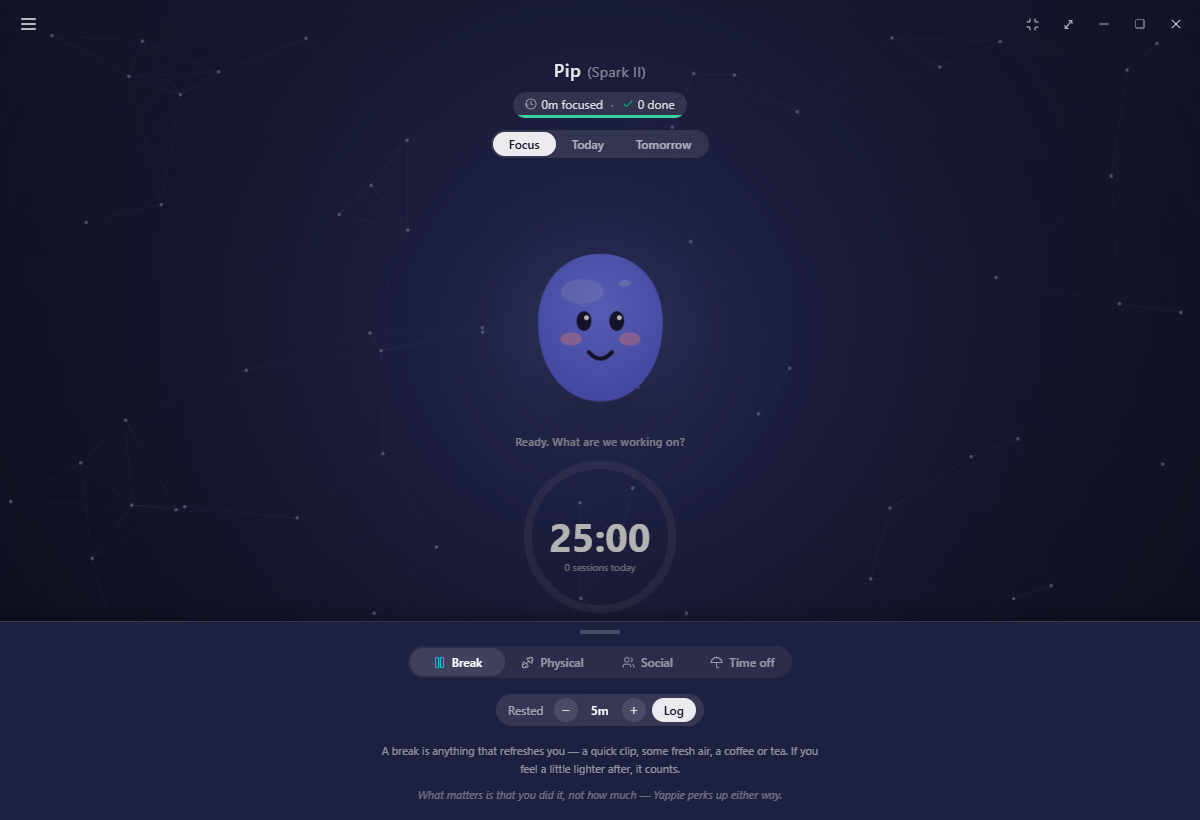
- Click the handle at the bottom edge of the Focus tab.
- Pick Break, Physical or Social.
- Set the minutes and log it.
A green check plays inside the drawer with the confirmation line under it, holds for a moment, then the drawer rolls itself down. All three restore energy; each one feeds a different part of your growth. A fourth tab, Time off, appears only on a day you could still declare off, and files today as a one-off leave.
The drawer lives on the Focus tab only, and steps aside while a session is running, while a break offer is up, and on a rest day. Full details are in Breaks & activities you log.
Two quieter views
Minimalist mode
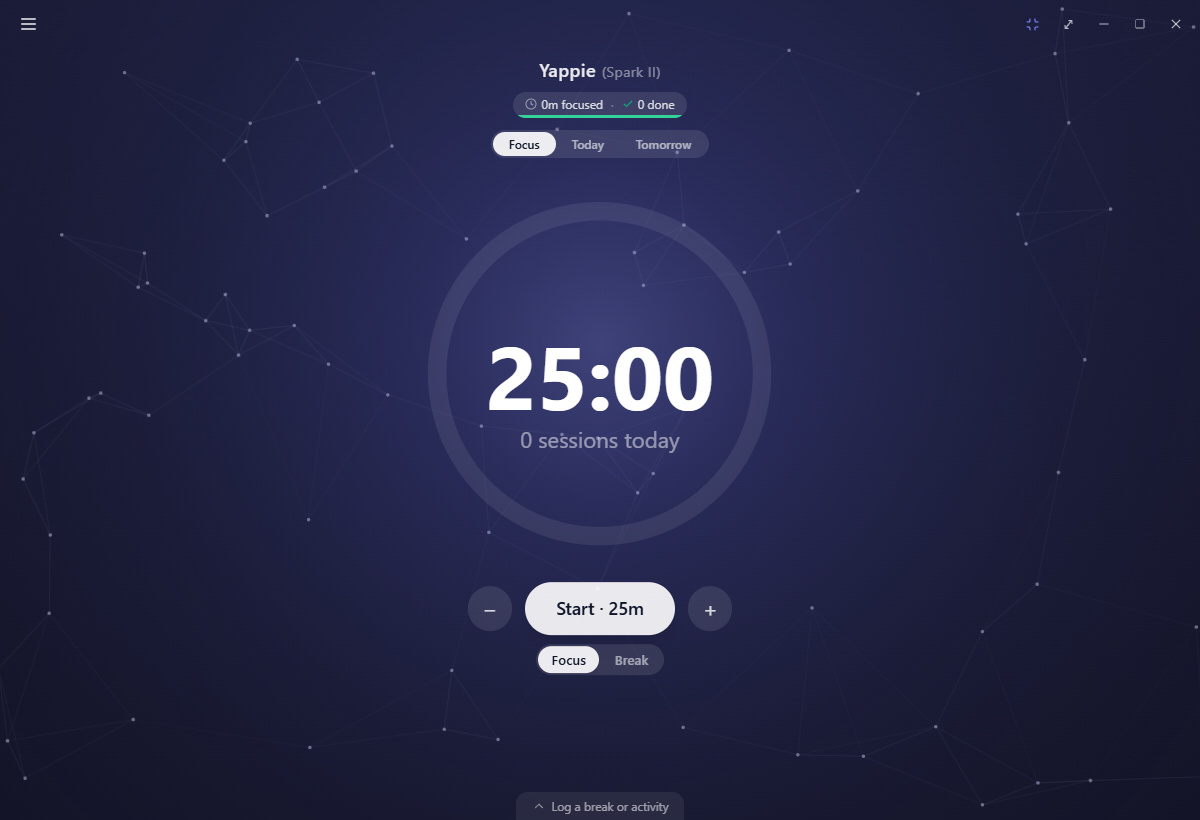
Click the shrink icon to the left of the pop-out button in the top strip. Yappie and the status line step away and the ring grows to fill the window, scaled to whatever height the page has. Click it again to bring the pet back.
The setting stays on this device: turning it on on the laptop leaves your desktop alone. It hides itself on a rest day and while a menu page is open, since there is no timer to be minimal about.
The companion pop-out
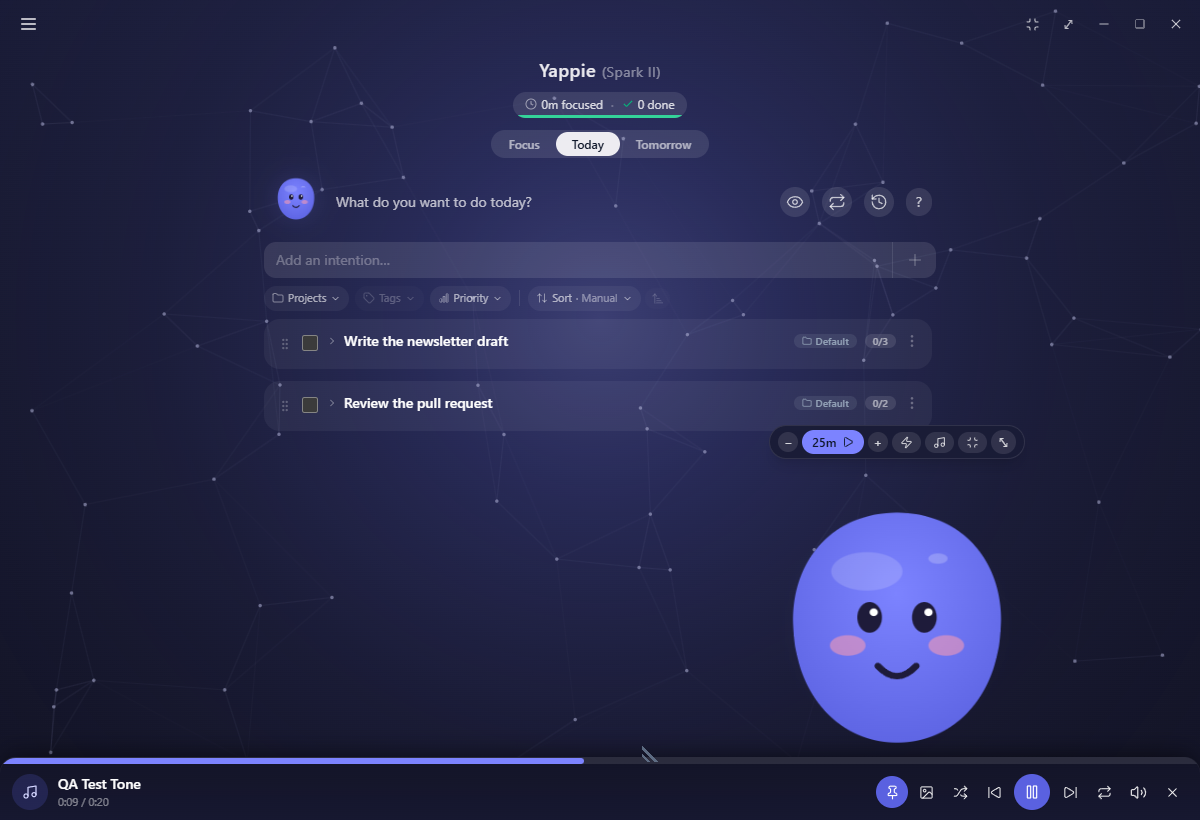
- Click ⤢ in the top strip, or right-click the tray icon and choose Pop out as companion.
- Yappie becomes a small, always-on-top, transparent window with no frame.
- Hover the pet for a control bar: − and +, Start focus, the Focus / Break switch, a music button, the minimalist toggle and Back to window.
- Drag the pet itself to move the window, and use the grip in the bottom-left corner to resize it.
A slim band above the pet is reserved for playback, so opening music never resizes the window. During a one-on-one co-focus the pop-out shows both pets side by side. On a rest day the focus controls collapse to a single Actually, I want to work.
When something is in the way
Another device is already focusing. Only one signed-in device may run a session at a time. Start dims and explains that another device is mid-session; Cancel that session and start here takes it over after a confirmation. The pop-out gives the same explanation rather than doing nothing.
Quitting mid-session. Every route out, the tray, the keyboard shortcut, the window's close button and an update's "Restart & install", asks first in Yappie's own dialog. Keep focusing genuinely keeps focusing: the update install waits and the day's task alarms stay armed. Quitting anyway ends the session there, so the dialog warns you before you do it. If the app never gets the chance to ask, after a crash or a machine shutdown, the minutes you had focused come back into Unsorted focus on the next launch.
A rest day. The Focus tab clears down to Yappie and a line telling you to enjoy your day off, with one button: Actually, I want to work. See What a rest day looks like.
On mobile
The Focus tab is the centre of the bar, with Today and Tomorrow one swipe to the right.
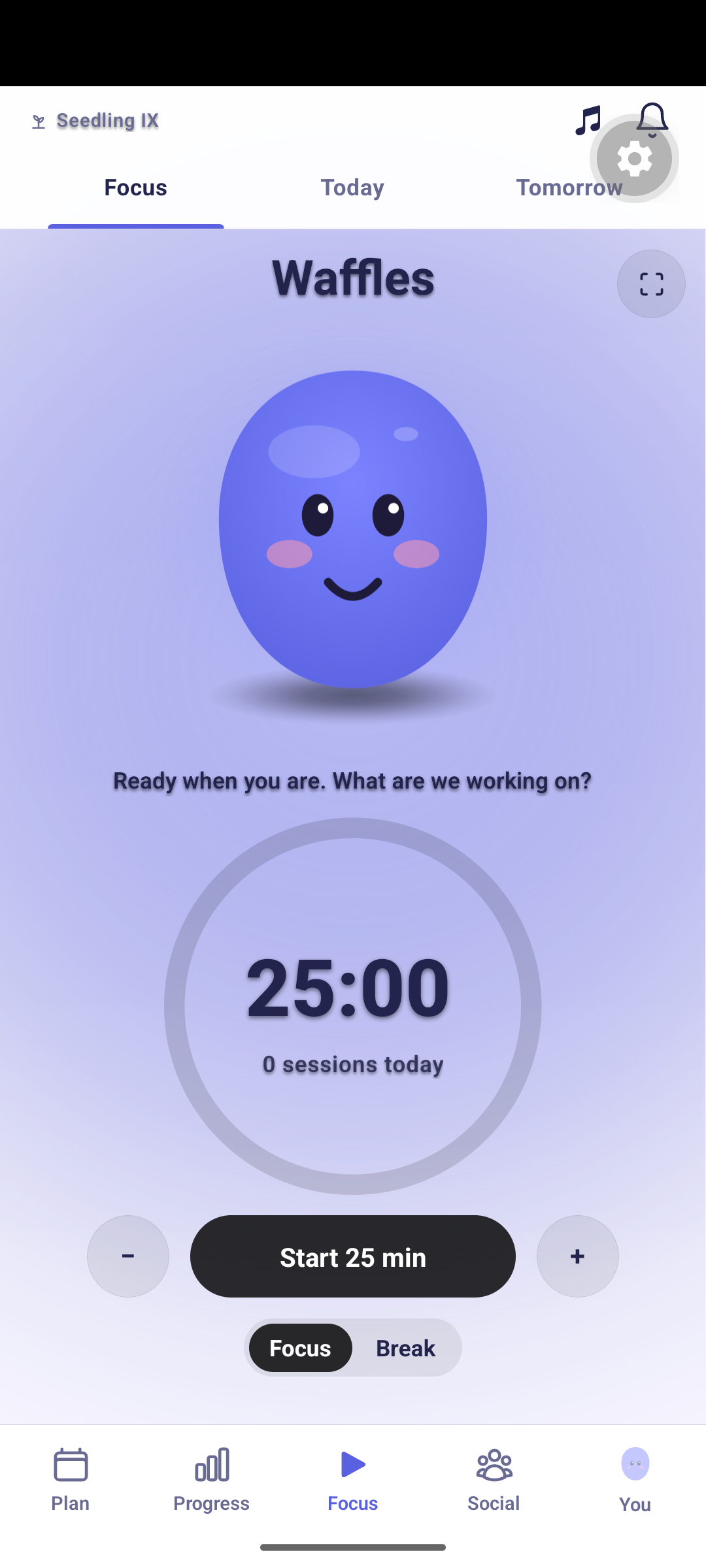
- Run a session: set the length with the steppers and tap Start, then use pause, resume and stop on the same stage.
- Focus on a task: tap ▶ on a task or subtask; it routes to the stage already attached.
- Log a break or activity: pull down from the top of the stage, or tap the stats pill, to open the glance sheet, which carries the Break, Physical, Social and Time off rows.
- Zen mode: tap the inward-arrows glyph in the header, left of the bell. It hides the pet and enlarges the timer, and is kept on this device. It only shows while the Focus segment is on screen.
Related
- Focus sessions for lengths, breaks and how time is credited
- Unsorted focus for where stopped and untied minutes land
- Breaks & activities you log for the drawer in full
- Working with tasks for the tasks you attach to a session
Last updated October 21, 2026