Focus & tasks
Projects
Buckets that give each task a home.
Projects are buckets. Every task lives in exactly one, so your work has a home and the time you spend adds up somewhere sensible.
One task, one project
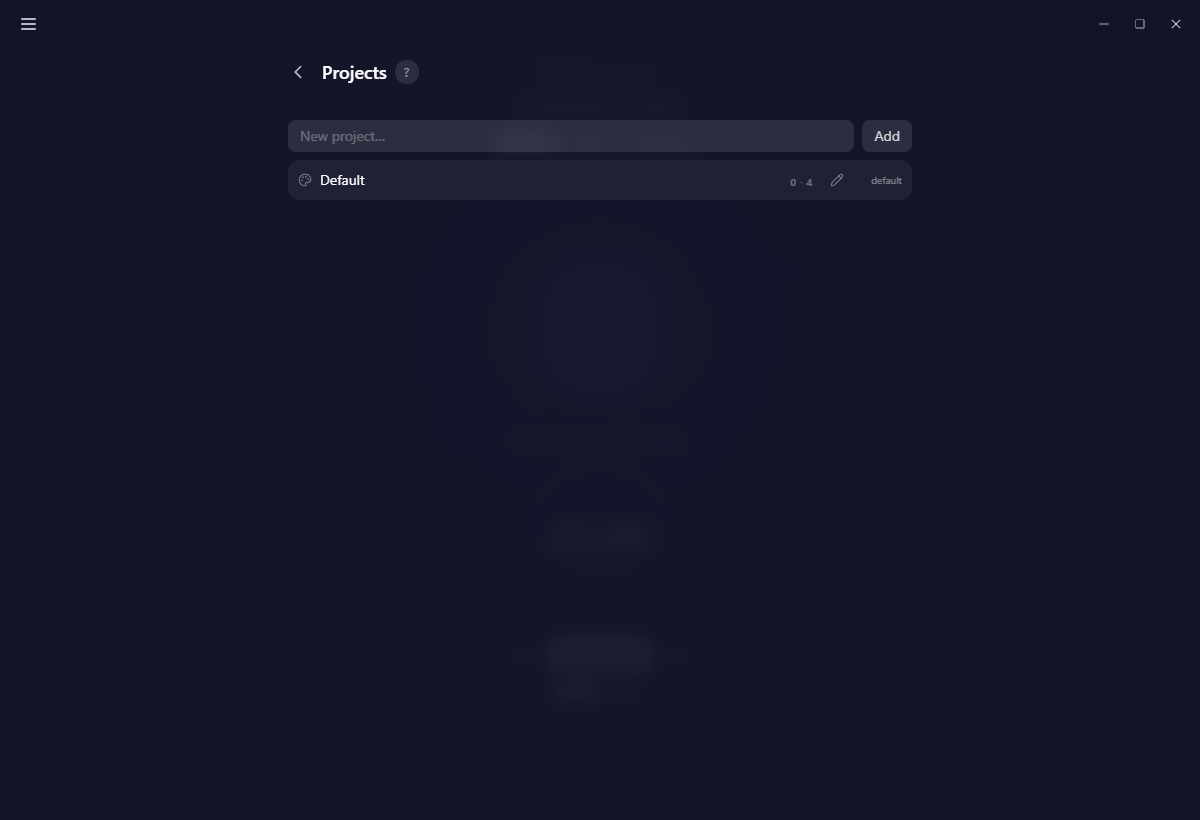
Anything you do not file lands in the built-in Default project, so nothing floats loose. Default is permanent: you can rename and recolour it like any other, but it cannot be deleted or archived. Out of the box it carries no colour at all, which is why it looks like a plain card next to the ones you have coloured yourself.
To add a project, type a name at the top and press Enter or Add. A name that already exists will not create a second one.
Renaming and recolouring
The pencil on a row opens an edit dialog with the name and the same rich colour picker your tasks use: preset swatches, a colour square, a hue slider and RGB boxes.
The two numbers on each row
That small badge is two separate counts, not a total:
- On the left, how many recurring tasks file into this project.
- On the right, how many archived past tasks it holds.
Neither counts today's live list. This page manages your projects; it is not a view of what you are doing right now.
Use a row's chevron to open the project itself, where its Recurring tasks and History sit side by side, with a quick-add that files straight into it.
A ? at the top opens a short explainer, and a three-step walkthrough runs the first time you visit.
Archiving versus deleting
The two look similar and behave very differently.
Archiving stops the project's recurring tasks from firing and drops the row into a separate Archived section. Everything it holds stays intact.
Deleting moves its tasks and its recurring tasks to Default, then erases that project's recorded focus time from your charts.
If you want your history and charts to stay whole, archive rather than delete.
One thing to know about coming back: un-archiving a project does not switch its recurring tasks back on. Yappie says so when you do it, and you re-arm the ones you still want from the Recurring tasks page. That is deliberate, so a project you shelved for six months does not empty its backlog into your Monday.
On mobile
Mobile keeps Projects as one of the three tabs under Plan, beside Recurring and History.
Related
- Tags are the cross-cutting version, for work that spans projects.
- Recurring tasks is where archived routines wait.
- Organizing has the step-by-step recipes.
Last updated October 21, 2026