Getting started
Get Yappie
Install it, use it as a guest or signed in, sync for free, and pick a plan.
Getting Yappie takes a minute, and you can be focusing before you ever create an account. This page covers installing it, the difference between using Yappie as a guest and signing in, what cloud sync carries, and what the plans add.
Install Yappie
Head to the download page on the Yappie website and pick your platform:
- Windows: a one-click installer. It installs for your user only, so there's no admin prompt.
- macOS: a disk image. Drag Yappie to Applications and open it.
The first launch shows the usual one-time "downloaded from the internet" prompt that any new app gets; the download page walks through it.
Phone apps for iOS and Android are on the way. If you're signed in and away from your own machine, you can also open the Yappie site in a browser and use the same app there.
The first launch
The first time you open Yappie, it hops in from a distance, lands, and asks what you'd like to call it. Seven short steps later you have a named pet in a colour you picked, and one thing to do today.
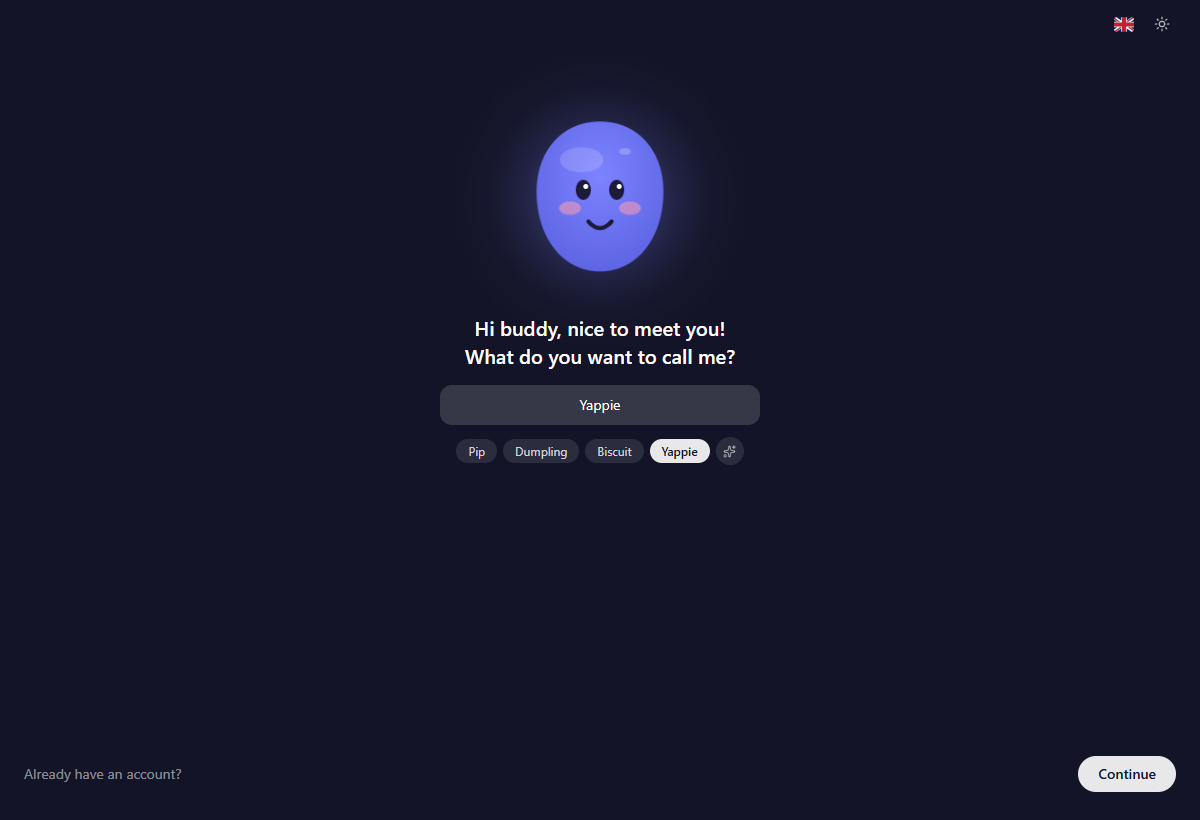
Meeting Yappie walks through those steps, including the topics picker and the keepsake at the end. You can replay the whole thing later from Settings → Advanced → Replay welcome.
Guest or signed in
You can use Yappie immediately as a guest. The timer, your lists, projects, tags, History, growth, the Hall of Glory, backgrounds, themes and the free soundscapes all work with no account at all, and nothing you do leaves the machine.
An account adds three things: your data can follow you between devices, the social side becomes available (friends, cheers, co-focus, study groups), and the hosted AI companion becomes available. Accounts are created on the Yappie website; the desktop app then signs you in.
Signing in offers a code by email, a code by phone, a password, or Continue with Google or Apple. Codes are six paste-friendly boxes, and pasting the code signs you straight in.
If you set a password, it needs at least 12 characters with upper and lower case and a number, checked live as you type. Two-factor authentication is optional, and sends a code by email or SMS at each new sign-in.
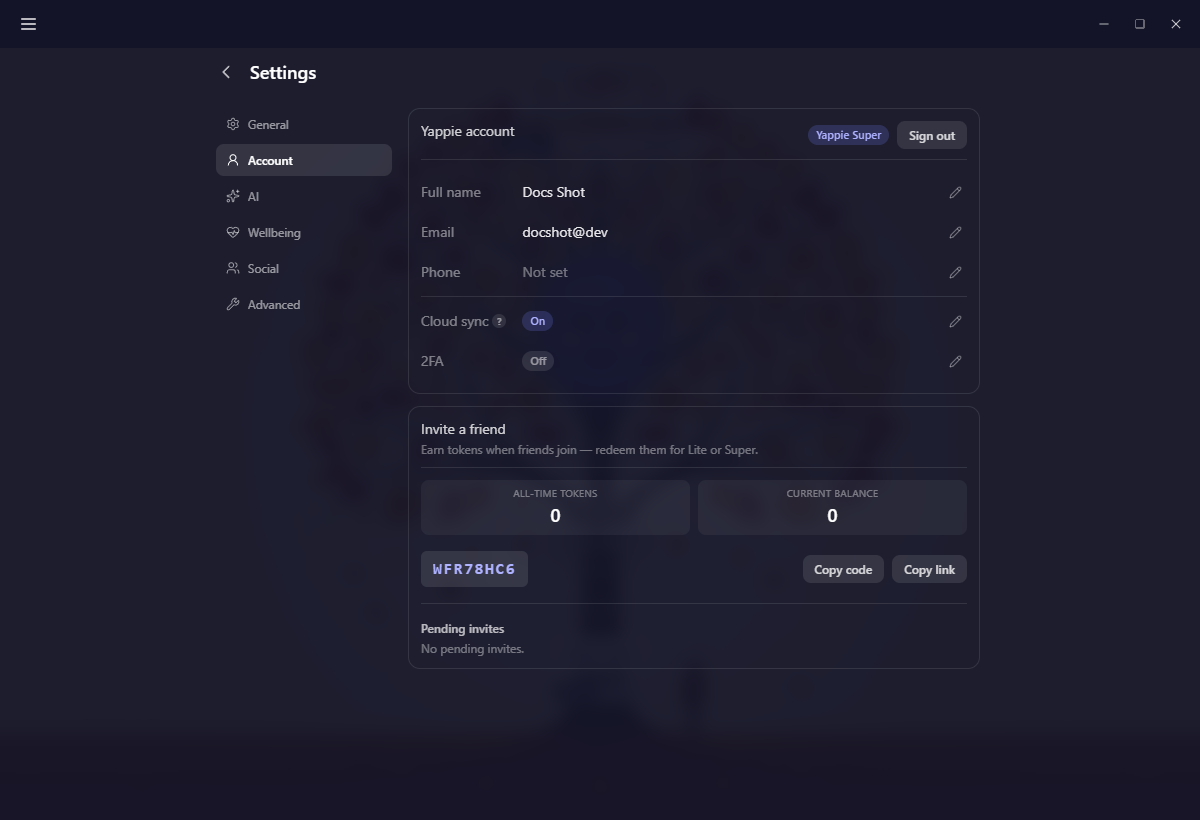
Cloud sync
Cloud sync is free on every plan. Turn it on from Settings → Account → Cloud sync and it carries your growth, your pet's look, your settings, your tasks, your recurring tasks and your AI memory across your devices.
Your AI keys are never synced. They stay in the keychain of the device where you entered them.
A few things are deliberately device-local: your theme, your background and its rotation, your AI connection mode, the order you drag Today and Tomorrow into, minimalist mode, and which walkthroughs you've seen. Recurring-task order does sync.
Turning sync off leaves everything safely on the device. Synced data is deleted from your account on the website, and if you do that, the next device to reconnect asks whether to upload its own copy as a fresh start or clear itself too.
How many devices at once
Free and Yappie Lite accounts stay signed in on one device at a time. Yappie Super raises that to three. Hitting the limit opens a chooser so you can sign one out and carry on here. This is about staying signed in, not about syncing, which every plan gets.
Separately, only one signed-in device may run a focus session at a time. If another one is mid-session, Start dims and explains itself, with the option to cancel that session and start here.
Choose a plan
The whole productive side of Yappie is free, and identical on every plan: as many projects and tags as you like, recurring tasks, History, the task tools, Growth, Charts, the Hall of Glory, Time off, streak freezes, friends, study groups and focusing alongside other people. What money buys is more of the library, a bigger daily AI allowance and a fancier pet.
You never need a paid plan to focus well. Plans add variety and a bigger AI allowance, not the ability to get your work done.
Plans sets out every tier and exactly where the line falls, and the pricing page on the website carries the current numbers side by side.
Staying up to date
Settings → Advanced holds the update behaviour: Automatic (download quietly, apply on the next restart), Notify me (download, then ask), or Off. Check now looks immediately, and the panel prints when it last looked and what it found. If an update wants to restart mid-session, Yappie asks first, and keeping the session alive really does keep it alive.
Once you're installed, see Meeting Yappie for the first run and Finding your way around for the layout of the app.
Last updated October 21, 2026