Getting started
Meeting Yappie
The seven-step first run: naming, colour, what Yappie is for, nudges, your favourite topics, and the keepsake it hands you.
The first time you open Yappie, it introduces itself. Seven short steps, none of them long, and at the end you have a named pet, a look you chose, and one thing to do today. You can pat, tickle and stretch the pet the whole way through, and you can go Back at any point.
A language menu and a sun/moon theme toggle sit in the top-right corner, and the strip they live in drags the window around. A brand-new setup starts in light or dark to match whatever your computer is set to.
1. A name
Yappie hops in from far away, lands in front of you and says hello. Then it asks what you'd like to call it.
Type anything up to 24 characters, or tap one of the suggestions underneath. Those suggestions are drawn from a pool in the language you've chosen, and the small sparkle button reshuffles them.
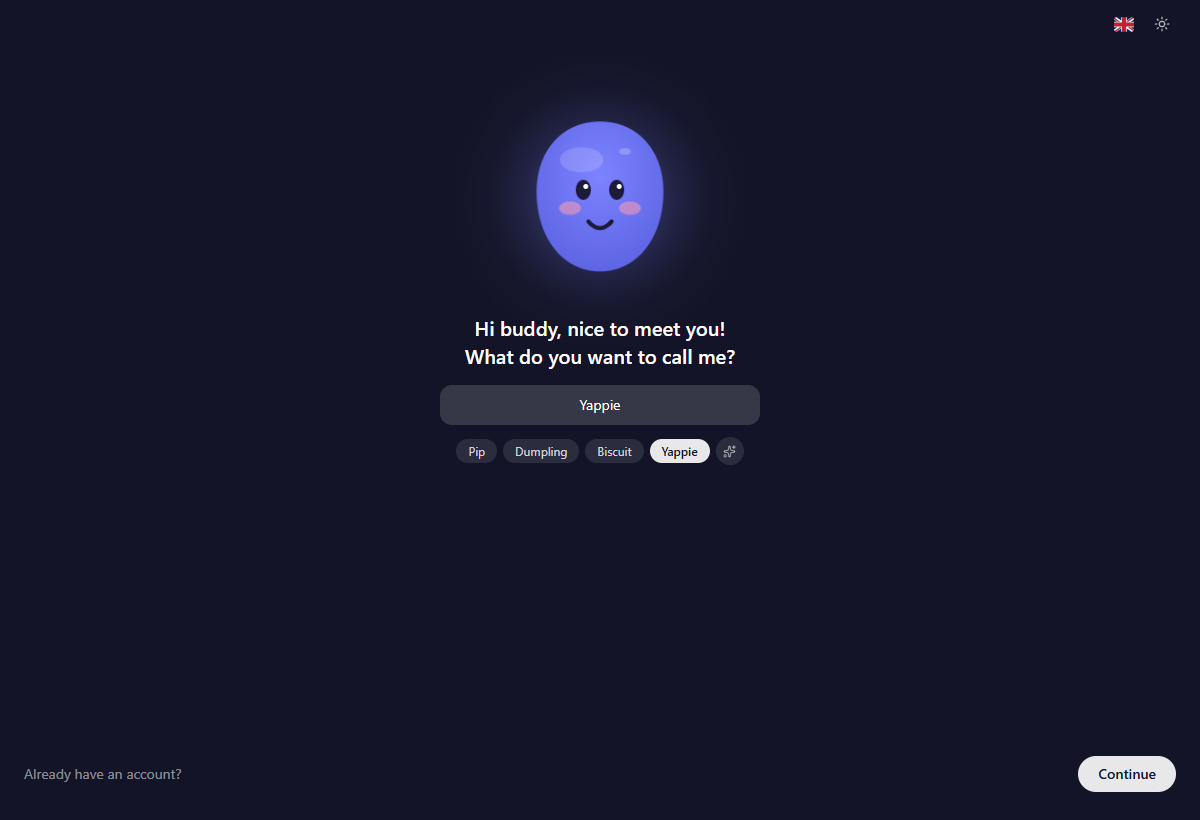
If you already have an account, Already have an account? slides a sign-in panel in over this step rather than costing you a whole screen. Sign in there and setup adapts to what your account already knows.
2. A colour
Ten colours, and picking one recolours the pet above you as you go. It's a starting point, not a commitment: the full palette of 24 body colours, plus eyes, mouths and accessories, lives in Pet customization afterwards.
3. What Yappie is for
A short first-person list, typed out a line at a time, with the important words lighting up under a hand-drawn brush stroke. It's Yappie explaining itself: a gentle focus buddy, small timed steps, trusting you to report focus you did without it, growing with you, and keeping your things private.
It plays once. Come back to this step and the finished list is already there.
4. Gentle nudges
Five optional reminders: Water, Posture, Eye rest, Deep breathing exercises and Stand up. Tick the ones you want and leave the rest. If you signed in a moment ago and your account already had some of these on, they arrive pre-ticked.
They stay on this device unless you turn on cloud sync, and you can change them any time in wellbeing settings.
5. What you love
Yappie tells you its own hobby (collecting shiny pebbles, watching clouds) and asks about yours. Thirty topics, from Music and Gaming to Gardening, Coffee and tea, and Spirituality and philosophy.
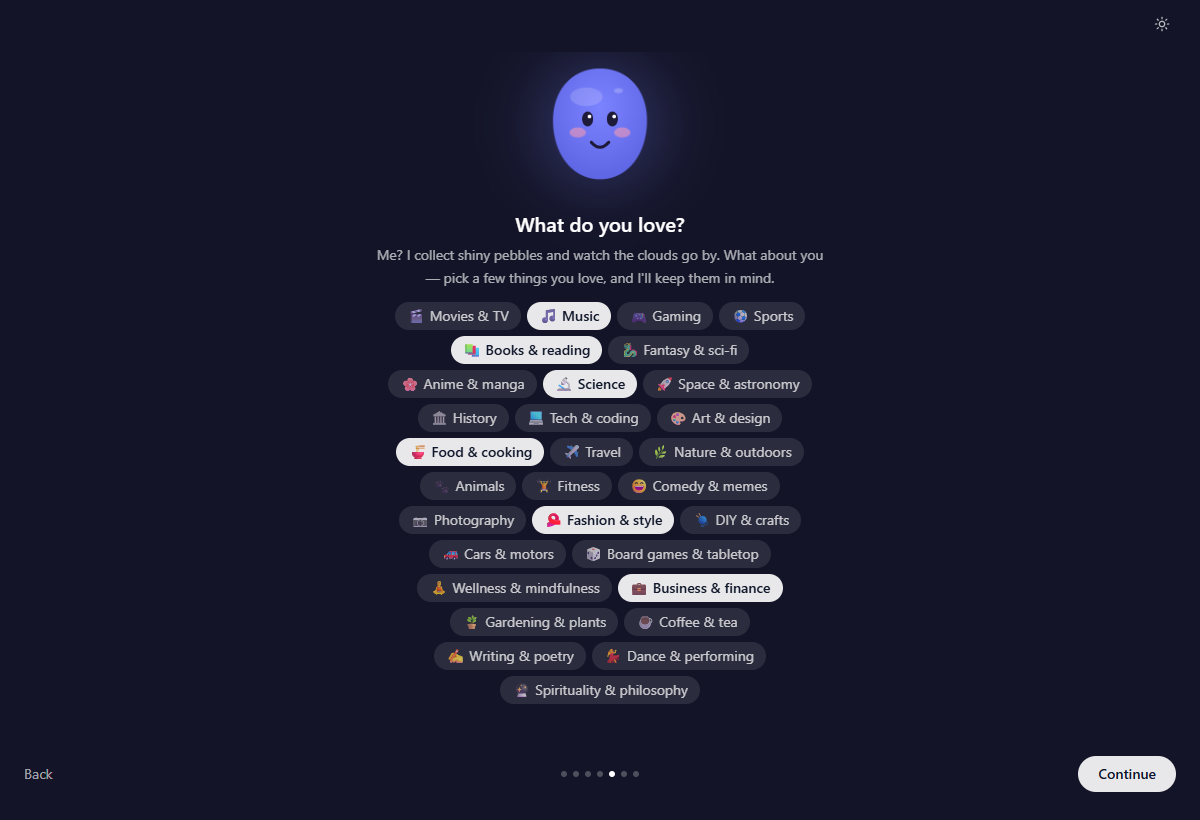
Pick as many or as few as you like, or none at all. What you pick shapes the small asides the AI companion makes later, and it decides the gift on the next step. You can change these afterwards in AI settings.
6. A keepsake
Yappie turns around, rummages through a pile of its things, hurls a few odds and ends over its shoulder, then comes back holding something and gives it to you. The object is drawn from one of the topics you picked; if you picked none, it's a pebble, which it clearly thinks is every bit as good.

The gift happens once, ever. It's recorded on your account, so setting Yappie up on a second device brings out the same keepsake as a callback rather than handing you a new one.
The step waits for the little scene to finish before Back and Continue come alive again. Afterwards, that keepsake joins the 63 objects Yappie brings out when it's sitting idle on the Focus tab, and roughly three times in ten the one it holds up is yours.
7. The first step together
Name one thing you want to do today, and put a rough time on it. A rough guess is enough; having a number on a task makes it measurably less likely to be put off.
If you're signed in and brand new, you can also let Yappie break that task down for you: up to six steps, each one editable in place, with its own minutes and a tag. Or plan it manually and get on with it.
What Yappie no longer asks
There's no session-length question any more. New accounts start at 25 minutes of focus and 5 minutes of break, and you change that whenever you like in Settings.
Someone signing in who has already set Yappie up elsewhere skips the colour and value steps and lands on nudges, and skips the topics step if they've already chosen topics. The gift step always plays, as the callback.
Doing it again
Settings → Advanced → Replay welcome runs the whole setup again, along with the app's first-run tour and every per-page walkthrough. Those "seen" marks live on the device rather than on your account, so a fresh install shows them again anyway.
Next, Finding your way around maps out the app you've landed in.
Last updated October 21, 2026