Tips & hidden gems
Desktop tips & hidden gems
Right-click to go back, the floating companion, minimalist mode, media keys, and the quiet things Yappie does while you are elsewhere.
Most of Yappie on the desktop is exactly where it looks like it is. This page is for the rest: the gestures, the small controls that do more than they seem to, and the things the app does quietly while you are somewhere else. None of it is required reading. Pick out the two or three that suit how you work and leave the others.
Right-click anywhere in the window to go back. It is the fastest thing in the app, and almost nobody finds it on their own.
Getting around
Right-click is back
A right-click closes the topmost layer, one at a time: an open dialog first, then a detail page, then the page under it. Keep clicking and you walk all the way out to the Focus tab.
It steps aside where you would want the normal menu instead. Over a text field, or over text you have selected, right-click gives you copy and paste as usual. It works in the main window; the popped-out companion does not need it.
The top strip is the title bar
Yappie draws its own title bar rather than using the one your system would give it, and the empty middle of that strip is a drag surface. Drag it to move the window, double-click it to maximize, and throw it at a screen edge for your usual snap behaviour. On Windows and Linux the minimize, maximize and close buttons are Yappie's own; on macOS the traffic lights stay where they belong. Everything else lives behind the hamburger on the left, mapped out in Finding your way around.
Pages slide, dialogs grow
Menu pages arrive from the right and fold back out the same way, and a dialog grows out of the point you clicked and shrinks back to it. That is the app showing you where you came from, so a back-chevron or a right-click always feels like the way home.
Making the window smaller
Pop out a floating companion
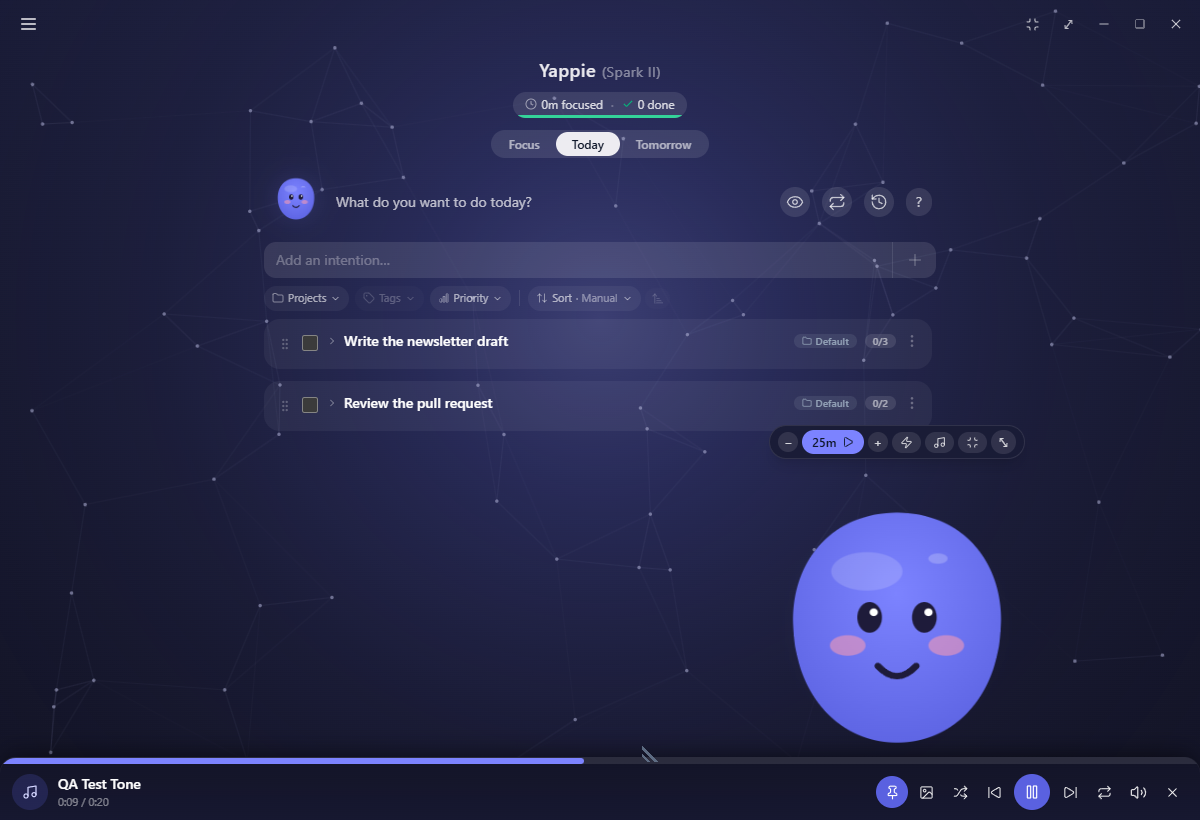
The ⤢ button in the top strip shrinks Yappie into a small always-on-top window that floats over whatever you are working in. Drag the pet itself to move it, and grab the grip in the bottom-left corner to resize.
Hover the pet and a control bar appears over its head: minus and plus for the length, Start, a Focus/Break switch, a music button, the minimalist toggle, and a way back to the full window. On a day off the whole cluster collapses to a single Actually, I want to work.
Minimalist mode
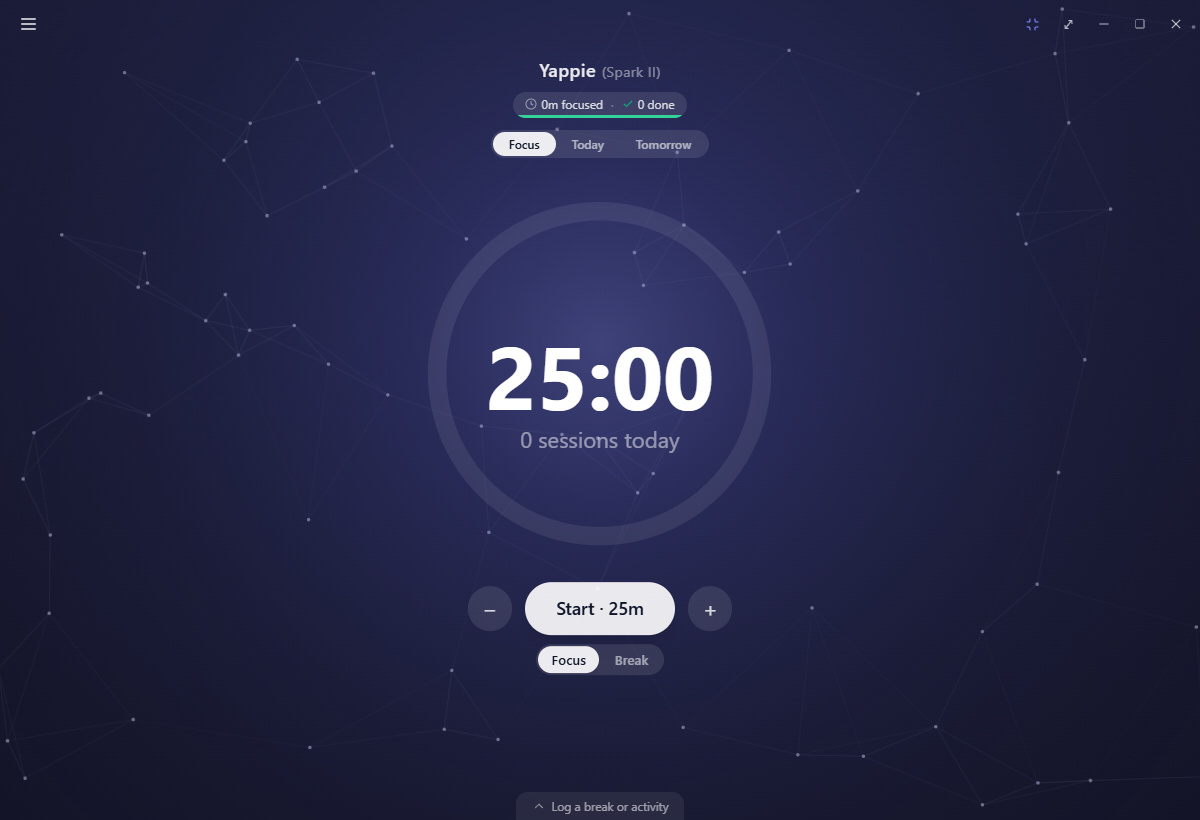
The icon to the left of the pop-out button hides Yappie and the status line and blows the countdown ring up to roughly two and a half times its size. The glyph turns teal while it is on. It is a per-device choice, so switching it on here leaves your other machines alone, and it steps out of the way on a rest day and while a menu page is open.
Small controls, more range
Hold a stepper to go faster
Every minus and plus in the app fires once on a click, then repeats and speeds up if you press and hold: the timer, the minute boxes in the log drawer, the wellbeing intervals, the AI cap. The tooltips say so, in Less (hold to go faster) and More (hold to go faster).
Double-click to rename
Double-click a task or a step title to edit it in place. Enter saves, Escape cancels. The same rename lives in the ⋮ menu for when you would rather not remember.
Drag to reorder, on this machine
Tasks and steps have a drag grip. Drops stay inside their own group, so finished and unfinished items never mix, and dragging turns off while a sort other than Manual is active.
Your Today and Tomorrow order is deliberately kept on the device you set it on. The tasks sync everywhere; the order they sit in does not, so finishing something on your phone will not reshuffle your laptop. Recurring task order does sync.
Esc, Enter and the "?"
Esc closes the menu and cancels an inline edit. Enter submits the add-task, add-tag and add-project fields.
A small ? sits beside the title on Today, Projects, Tags, Recurring tasks, History, Growth, My sky and Time off. It opens a short explanation of what the page is for, so you can read the material again long after the first-visit walkthrough has been and gone. To see the walkthroughs themselves again, use Replay welcome in Settings.
Sound
Audio plays from a hidden background window, so a track keeps going when you pop out, come back to the full window, or close to the tray. Your keyboard's media keys work on it, and it appears in your system's now-playing panel on Windows, macOS and Linux, including for the endless generative tracks that have no file behind them.
Unpin the player bar and it tucks away so you can watch a full-screen background, then slides back when your pointer comes near the bottom edge. The pop-out has a slim band of its own above the pet: playback controls when something is playing, a short picker when nothing is, and a ⋮ that brings the full window back on the Soundscapes page.
Your pet
Click Yappie for a squish, tap it quickly for a giggling tickle, press and hold to poke a dent, or grab a cheek and drag to stretch it. During a session it still reacts, more quietly. When its energy is low it will deform but not smile back, which is the tell that it wants a break. Leave the Focus tab idle and it will dig out one of its keepsakes, hold it up and say something about it, then pack away after about half a minute. There is more of this in Playing with Yappie.
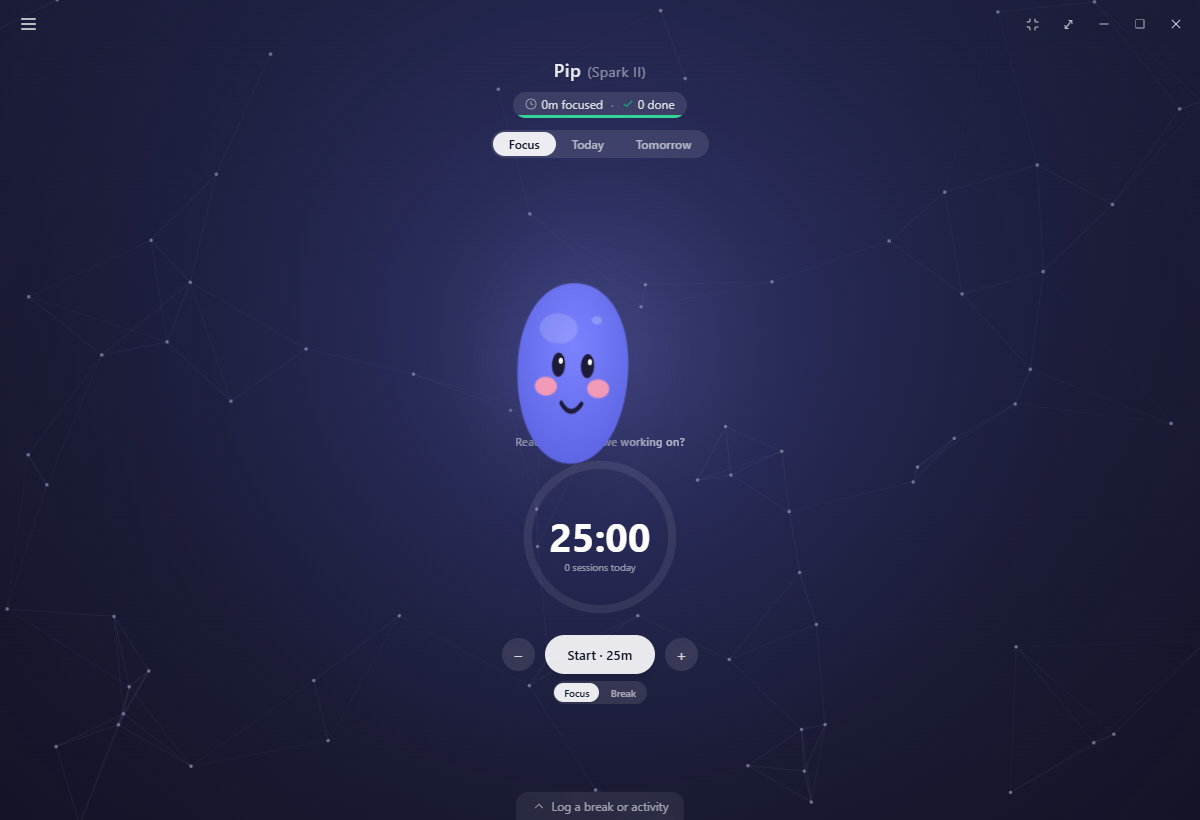
A small dot beside the pet's name appears when you are signed in with sync on. Green means this is your active device. Amber means another one is, and ambient AI lines pause here so two machines do not spend the same quota on the same sentence. Do anything at all on this device to take the title back.
Things that arrive on their own
Badges, level-ups, Journey tiers, sky discoveries, the daily look-back and the occasional short survey all roll up from the bottom of the window in one shared drawer. They queue politely: never over a running focus session, never stacked on each other, and always skippable.
The bottom bars behave the same way. A focus banner appears whenever a session is running and you are looking at something other than Focus, and the stranger waiting bar and the soundtrack player share that same row. They are real rows rather than floating overlays, so nothing hides underneath them, and they slide away as you scroll down a long page.
When something goes wrong
Quitting during a focus session always asks first, once, whichever way you quit: the tray, the keyboard shortcut, the close button, or a waiting update. Keep focusing really does keep focusing, and the update waits its turn.
If Yappie is closed or crashes mid-session, the minutes you had already done are banked into Unsorted focus on the next launch, with a short line telling you how many. If a screen breaks, you get Yappie hit a snag and a Reload Yappie button rather than a blank window, and reloading rejoins a session that is still running, because the timer lives outside the screen. If the servers cannot be reached, a calm Can't reach Yappie sheet offers Try again and clears itself once the connection is back.
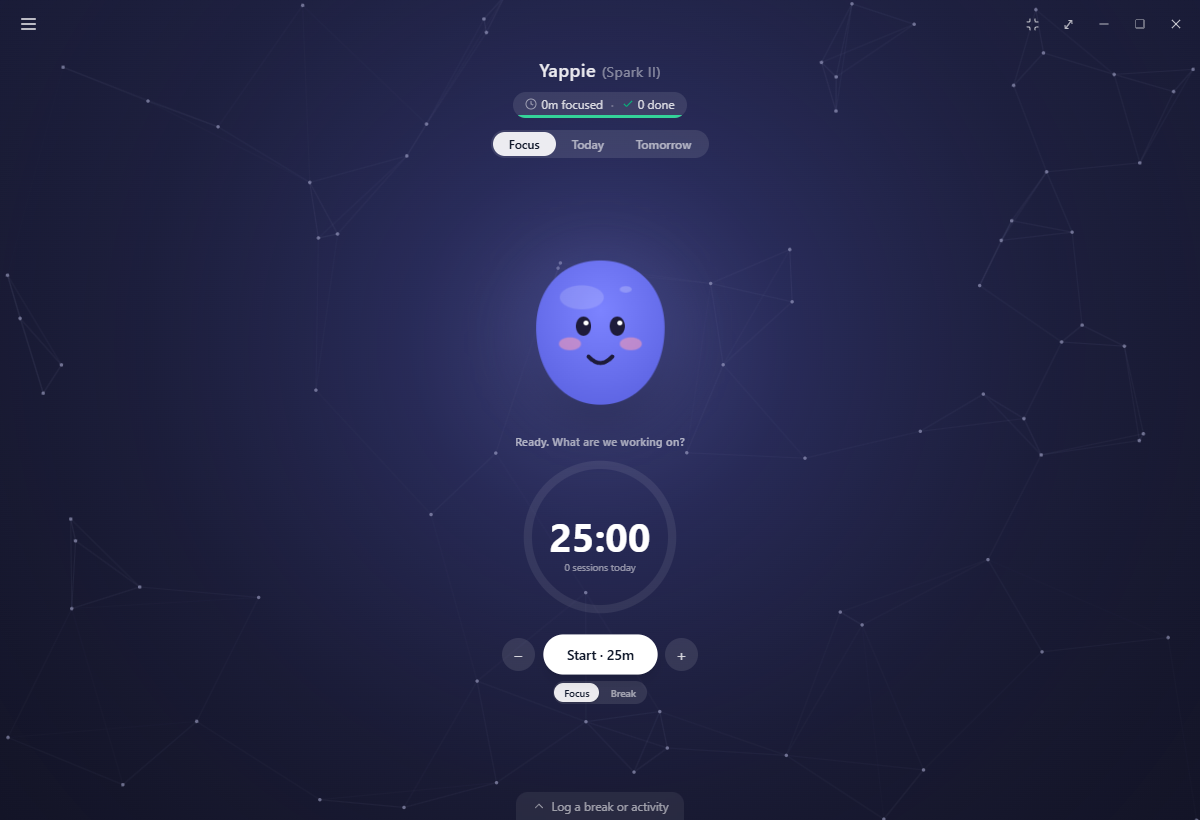
Opening the app again gives you a short loading screen of your own pet breathing. It holds until everything is in its right shape, so you never catch a glimpse of the ordinary view before it settles into your rest day or your chosen background.
Behind the scenes
Yappie can keep running in the tray when you close the window, and start with your computer. The tray icon is your actual pet, recoloured the moment you restyle it, its tooltip shows the live countdown, and right-clicking it gives you start, pause, resume and stop without opening anything. On a rest day those collapse to Actually, I want to work.
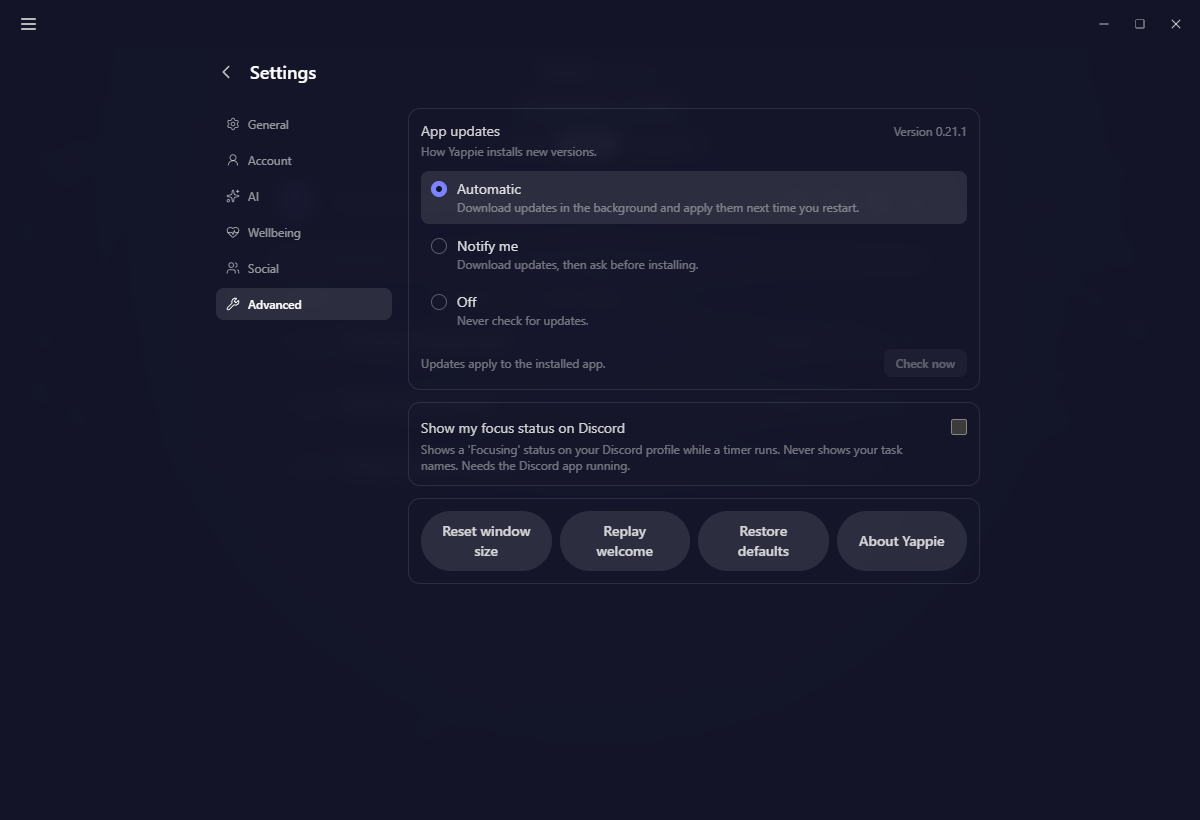
Settings → Advanced holds the quieter switches: how updates install, a line saying when the last check ran and what it found, an optional Discord status that shows Focusing and never a task name, and four maintenance buttons. Reset window size is the one to remember if you have dragged the window somewhere unhelpful, and Replay welcome runs the first-run setup and every page walkthrough again.
One last small thing: in the feedback form under About, you can paste a screenshot straight in with Ctrl+V rather than saving it to a file first.
Next: Finding your way around for the full navigation map, Focusing for the timer recipes, and Mobile for the phone's own set of gestures.
Last updated 21 października 2026