Rest & time off
Taking time off
A weekly rhythm, one-off leaves, and a calendar that lays the whole thing out.
Rest is part of working well, not a hole in it. Time off is where you tell Yappie you are resting, so it can keep your streak safe, draw a calm day on your charts instead of an empty one, and stay quiet for as long as you need. Like everything else Yappie does for your productivity, it is free.
Open it from the Menu. Time off sits in a group of its own, between Hall of Glory and Friends. The streak-freeze card on Growth links here too, and lands you on the Irregular tab, because a longer break is usually the better answer than a freeze.
There are three tabs: Regular, Irregular and Calendar. A four-step walkthrough runs the first time you open the page.
Your weekly rhythm
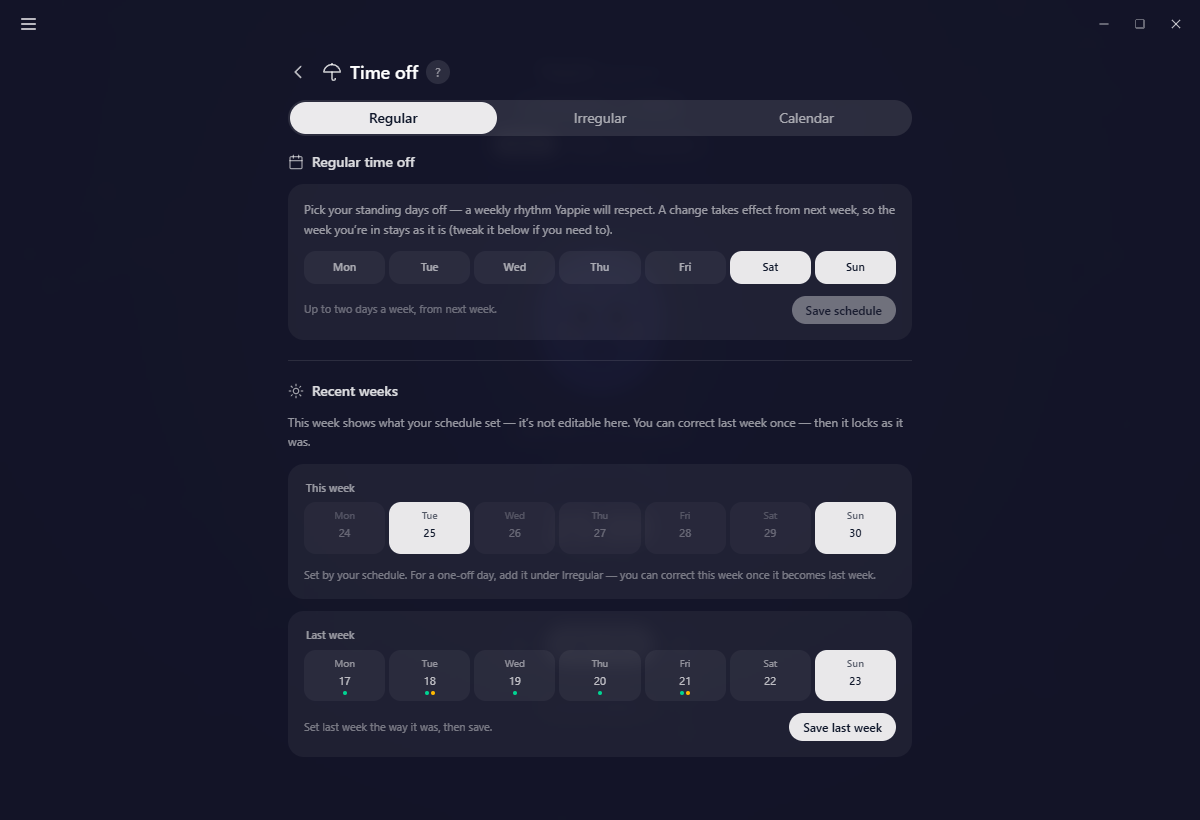
The Regular tab holds the days you take off every week. Tap the weekdays you want and press Save schedule. You can hold up to two standing days a week.
A saved schedule takes effect from next week. The week you are already in stays exactly as it is, so changing your rhythm never quietly rewrites days you have already lived.
Below the picker, Recent weeks shows the last two weeks as rows of day cells:
- This week is read-only. It shows what your schedule set, nothing more.
- Last week can be corrected once. Set the days the way the week really went, press Save last week, and it locks as it stands.
A day cell you cannot tap says why on hover: either an irregular leave already covers it, or you were active that day. Small dots under each date show what really happened, green for a task you finished and gold for free focus.
A one-off leave
The Irregular tab is for a trip, an illness, a long weekend, or a stretch you want to log after the fact. Press Add time off and pick a range on the two-month picker: the left pane is the start, the right the end. A short note is optional.
- Leave the end date empty for an open-ended break. You can set the end later, or end it with I'm back.
- A leave with an end date can run up to six months from its start. For anything longer, use the open-ended form.
- You can reach back six months when logging a leave after the fact, and plan roughly a year ahead.
- Leaves cannot overlap. A new one is trimmed to finish the day before the next one starts, and a range that begins inside an existing leave is refused.
Each leave carries a status: Resting while it is under way, Planned while it is still ahead of you, Past once it is over.
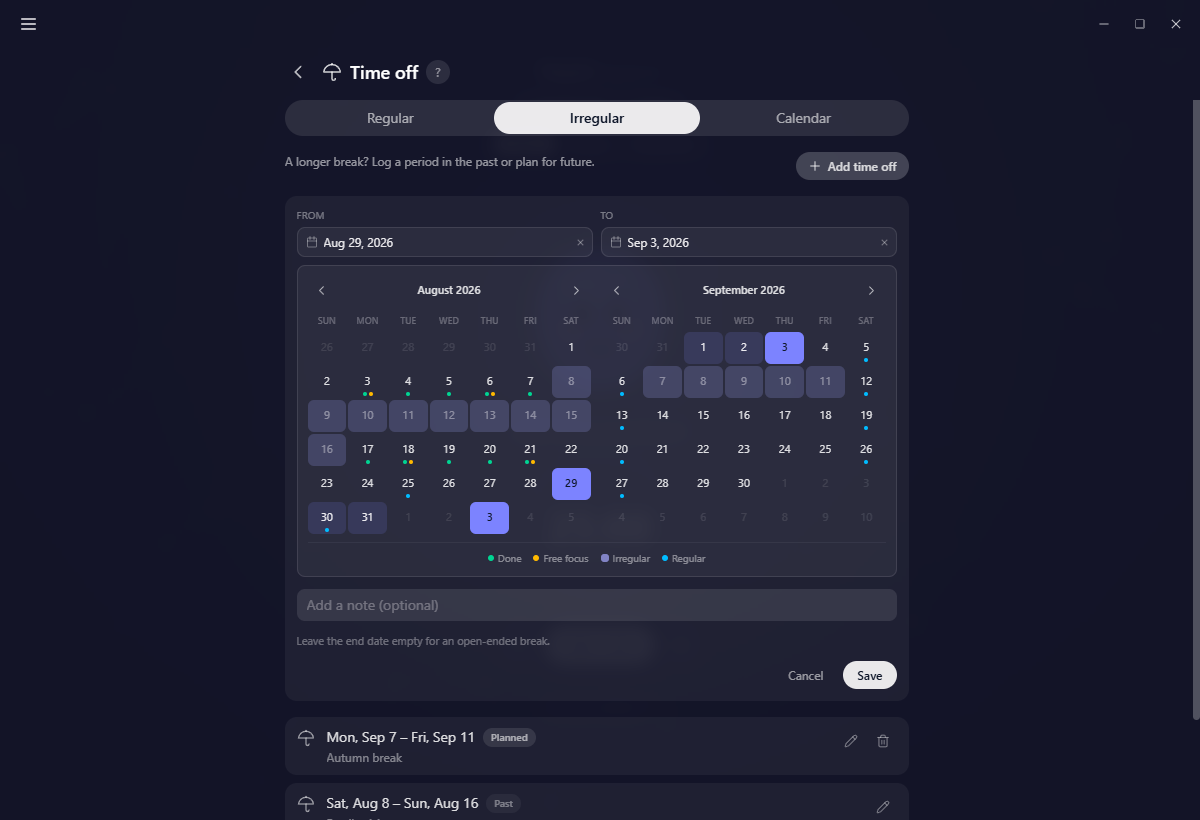
What you can change afterwards depends on where the leave sits. A planned leave is fully editable and can be removed. A leave under way keeps its start date, but you can set or clear its end. A leave entirely in the past is final once saved: the note stays editable, the dates do not, and it cannot be deleted. Yappie warns you about that while it is still a draft.
Marking today off without opening the page
If today turned out to be a rest day, open Log a break or activity at the bottom of the Focus tab and use its Time off tab. That files today as a one-day leave and puts the app into its rest state right away. Breaks & activities you log covers the drawer, and when that fourth tab is there at all.
The calendar
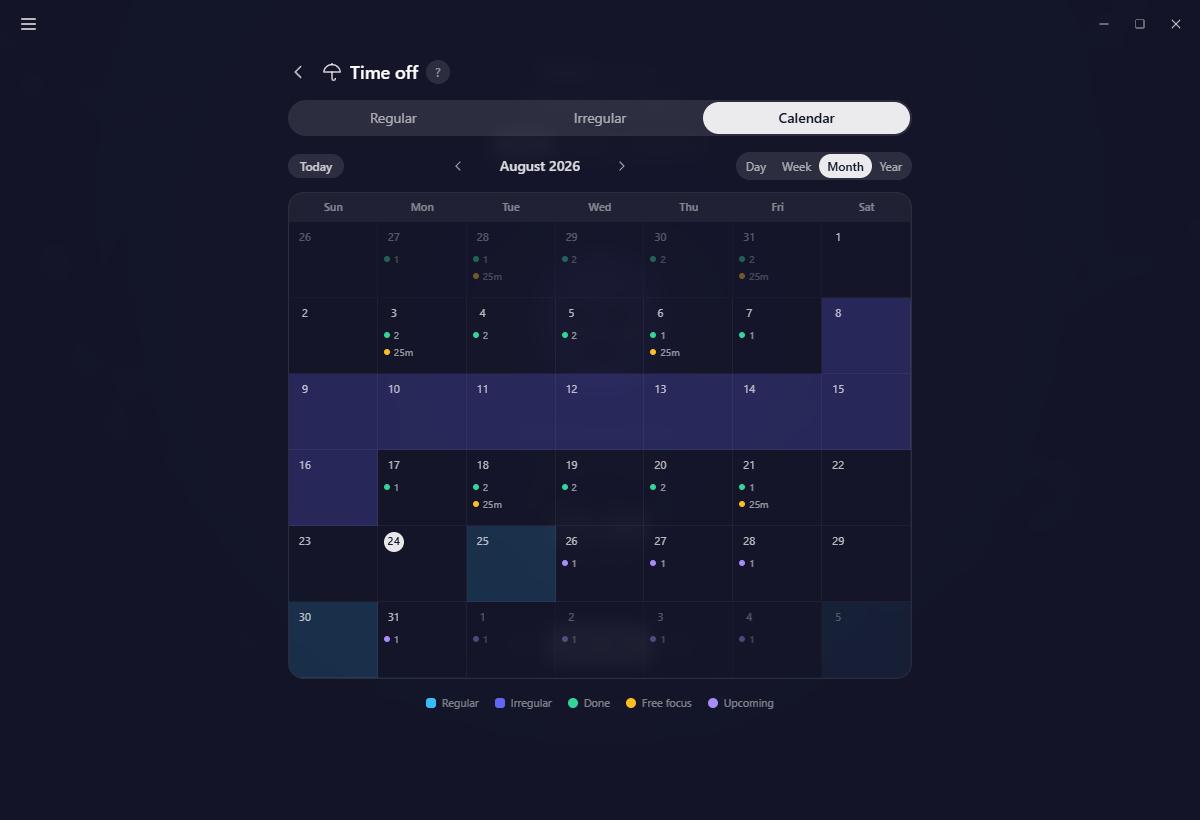
The Calendar tab lays the whole picture out in Day, Week, Month and Year views, with Today and arrows to move around. Rest tints the day itself and work shows as dots:
- Regular days off tint sky blue, Irregular leave tints indigo.
- Done is a green dot for a task or subtask you finished.
- Free focus is a gold dot for focus that was not attached to a task.
- Upcoming is a violet dot for a recurring task that is due.
Everything on the calendar is a way in. Clicking a rest day jumps to the card behind it on Regular or Irregular and flashes it. Clicking any other day opens the Day view, where a finished item opens in History or Today and an upcoming one in Recurring tasks or Tomorrow. Going back returns you to the same spot on the calendar.
The rules that surprise people
- A day you actually did something on is a work day, whatever the calendar said. Rest is a declaration; activity outranks it.
- Two standing days a week is the cap. For a third day, file a one-off leave.
- Regular changes start next week, and last week gets exactly one correction.
- Everything here is one account's rhythm, so it follows you to your other devices when you are signed in.
A day you declare keeps your streak growing and your charts calm. A day you skip without saying anything has to spend a streak freeze instead, and you only ever hold two of those.
Related
- What a rest day looks like covers everything the app changes on a day you have declared off.
- Coming back covers working anyway, ending a leave early, and filing a stretch you never declared.
- Streaks & streak freezes explains what a declared day off protects.
Last updated 21 octobre 2026