Privacy & plans
Privacy & cloud sync
Where your data lives, what free cloud sync carries, and the grid that decides what other people see.
Yappie works without an account, and tries to be plain about what leaves your machine when you do sign in. This page covers where your data lives, what cloud sync carries, and the controls that decide what other people see.
Without an account
You can use Yappie fully as a guest. The timer, your tasks and steps, projects, tags, history, growth, your pet and its look are saved on the device in front of you, and nothing is sent anywhere.
On Desktop those save files are encrypted at rest with the key your operating system keeps for Yappie (Keychain on macOS, DPAPI on Windows), so your progress is not editable JSON sitting in a folder. It is a lock on the file rather than a vault: the key belongs to your user account, so it deters casual editing rather than acting as a security boundary. Yappie runs on trust.
If two people share a computer, each signed-in account keeps its own local save, so the second never inherits the first one's tasks or growth. A few things stay with the machine rather than the account: your theme, your AI connection mode, window size and the other device-local preferences.
Cloud sync is free
Signing in is free, and so is sync. Backing up your data and keeping two devices in step costs nothing on any plan. What a paid plan changes is how many devices may stay signed in at the same time, which is on Plans.
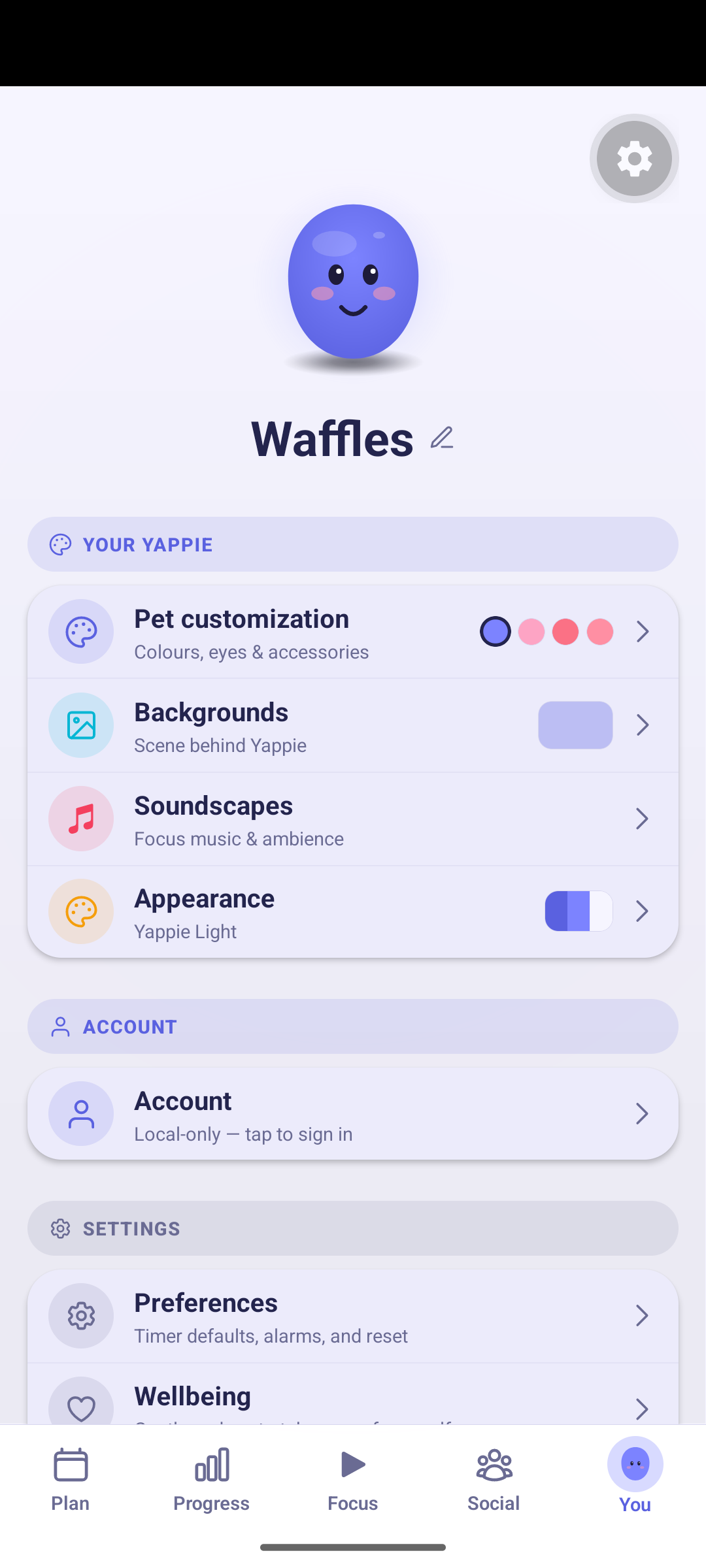
Sync lives in Settings → Account as a row called Cloud sync. The pencil beside it opens a switch, and the checkmark saves it. Turning it on runs a sync immediately rather than waiting for the next automatic pass.
It carries your growth, your pet's look, your settings, your tasks, your recurring tasks and your AI memory between your devices.
One thing it never carries: your AI keys. Bring your own key and it stays in the keychain of the single device you typed it on, with requests going from that device straight to the provider.
Turning Cloud sync off stops the backup without taking anything away. Everything you have stays on the device; new changes stop travelling, that is all.
Deleting what you have synced
Deleting your cloud data happens on the website, in your account settings, and asks you to type DELETE MY DATA to confirm. Deleting the whole account is a separate action, with its own phrase plus either your password or a one-time code, and it is scheduled rather than instant: the account stays usable for 30 days, and Yappie shows a banner with a Cancel deletion button for as long as that lasts.
If the cloud copy is deleted while another device still holds one, that device asks what to do with it: Keep this device & upload as new, or Wipe this device too. Wiping clears that device's tasks, projects, tags and history. Your level and your settings stay.
What Yappie sends about your device
Two things leave the app that are not your data, and neither one contains anything you have written.
A daily count. Once a day Yappie sends a random installation id and the name of your operating system, so we can see roughly how many people use it and from where. The id belongs to the install, not to you, and it is not tied to your account. The server works out an approximate country from the connection and does not store your IP address.
Crash reports. When something goes wrong, Yappie sends the technical details of the error: what broke, where in the code, the app version and your operating system. Never the contents of your tasks, notes, projects or anything else you have typed.
You can turn crash reports off. On desktop it is in Settings, under Send anonymous crash reports; on mobile it is in Settings → Preferences, under Diagnostics. It is a per-device switch and it is not synced, so turning it off on your laptop leaves your phone as it was.
Who can see what
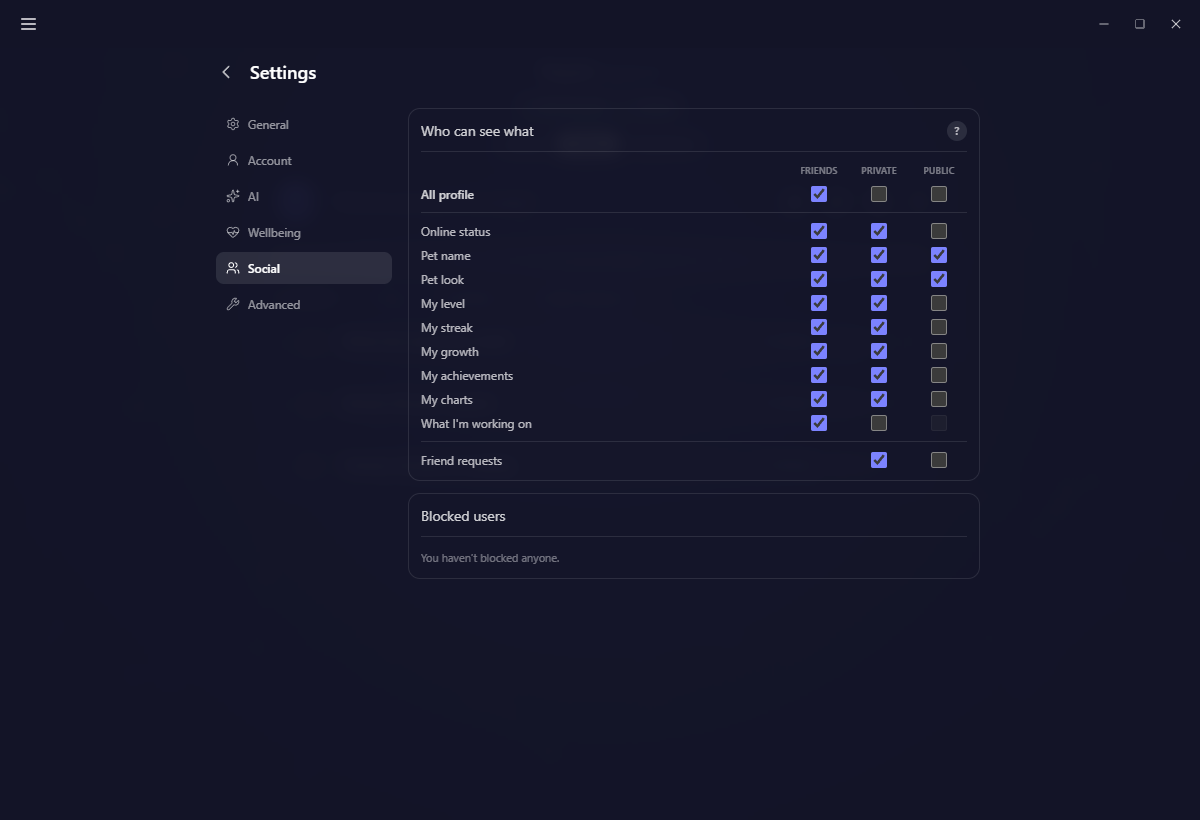
Settings → Social opens a grid titled Who can see what: ten rows against three audiences.
The rows are Online status, Pet name, Pet look, My level, My streak, My growth, My achievements, My charts, What I'm working on and Friend requests. The columns are Friends, Private (people in your private study groups) and Public (people in your public ones).
They do not all start off. Friends and private-group members can see most of it from the beginning; public-group members start with nothing but your pet's name and its look, which are shared with everyone. What I'm working on is the most personal row, and begins as friends only.
Three things about the grid catch people out:
- What I'm working on needs Online status on in the same column. Turn online status off and the working row switches off with it.
- Friend requests is not about seeing, it is about whether members of a group may send you one. It has no Friends cell, because you cannot request somebody you already have.
- The All profile row at the top flips a whole column at once.
The ? beside the title explains what every row means, and closes on the distinction worth remembering:
These switches control what other people see, never what is stored. With sync on, your stats live on the server so your own devices can share them. Turning a row off hides it from people; it does not delete it.
Restore defaults, in Settings → Advanced, resets this grid as well as your focus length, break length, close-to-tray and the wellbeing nudges.
Profiles in public groups
Underneath the grid sits a switch pointing the other way: See other members' full profiles, off by default. It decides what you see, not what you show.
Yappie does not police how honestly people log their focus time, and a few people will dress up a profile to impress strangers, so in public groups other members' full profiles stay hidden until you ask for them. You still see who is in the room, and the group's own focus total, which is the real thing: a public group counts only the focus its members spend live in the room.
What a person you focus with sees
Sitting down with somebody, a friend or a stranger, shows them your pet, a name for it, and your country. That is the list: your real name and your profile picture are never sent to a stranger at all.
If you have hidden your pet's name or look from public-group members, a stranger gets a generated stand-in, the same one every time, so hiding your pet does not turn you into a different person each session. Anyone you have blocked is never matched with you in the first place.
Blocking
Settings → Social ends with your blocked list. Blocking unfriends the person and stops them sending you new friend requests; Unblock lifts both.
The same grid and the same list are on mobile, under Privacy, and in your account settings on the web, so a change made on one device is a change everywhere.
Next: Plans for what free covers and what a subscription adds, and Referrals for the wallet that sits in the same settings page.
Last updated October 21, 2026