Focus & tasks
Tags
Cross-cutting labels that gather work across projects.
Tags are the cross-cutting version of a project. Where a project is the single home for a task, a tag is a thread that can run through many of them, so reading or deep work gathers matching work from everywhere at once.
Adding and editing
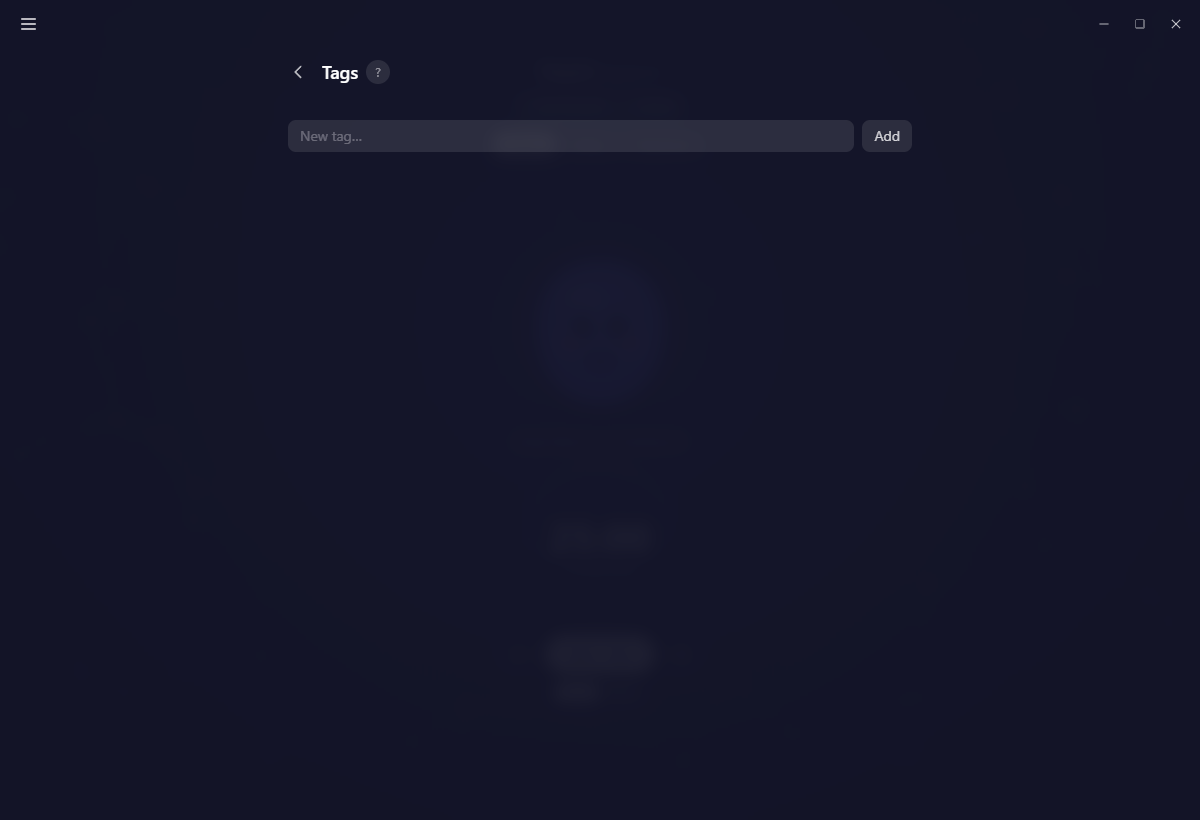
Type a name in the box above the list and press Enter. The pencil on a row opens an edit dialog with the name and a colour, the same picker your tasks and projects use.
Renaming or recolouring a tag is safe: everything already tracked under it stays tracked under it.
Tags on tasks, tags on steps
You can tag a whole task or a single step.
As soon as a task has steps, the task's own tag picker disappears and tags live on each step instead. Label the specific piece of work rather than the container it sits in.
The two numbers on each row
Like projects, that badge is two separate counts: how many recurring tasks carry the tag, and how many archived past tasks do. A task on today's live list is not counted until it is archived.
Click a row to open the tag's own page, listing everything carrying it across every project, with its own Recurring and History tabs.
Non-tagged
The tag filter on History and Recurring tasks carries a Non-tagged row, on by default, so untagged work stays visible while you narrow down to a tag. Turn it off when you only want the labelled things.
Deleting a tag
The × on a row asks once, inline, and then it is gone.
Deleting a tag removes it from every task, every step and every recurring task, and erases the time tracked under it. This cannot be undone.
Creating a tag with the same name afterwards will not bring any of that back. As far as Yappie is concerned it is a brand-new tag with nothing behind it.
On mobile
Mobile manages tags from the icon in the Plan header, above the Projects, Recurring and History tabs.
Related
Last updated 21 tháng 10 năm 2026