How-to guides
Friends & groups
Add friends, cheer them on, sit down with a stranger, and join or run a study group.
Yappie is nicer with company. These recipes cover adding friends, cheering them on, sitting down with one of them or with a stranger, and running a study group. They all need an account, and they are all free.
Friends, cheers, co-focus, strangers and study groups cost nothing on any plan. Yappie sells cosmetics, soundscapes, backgrounds and AI, not company.
Friends
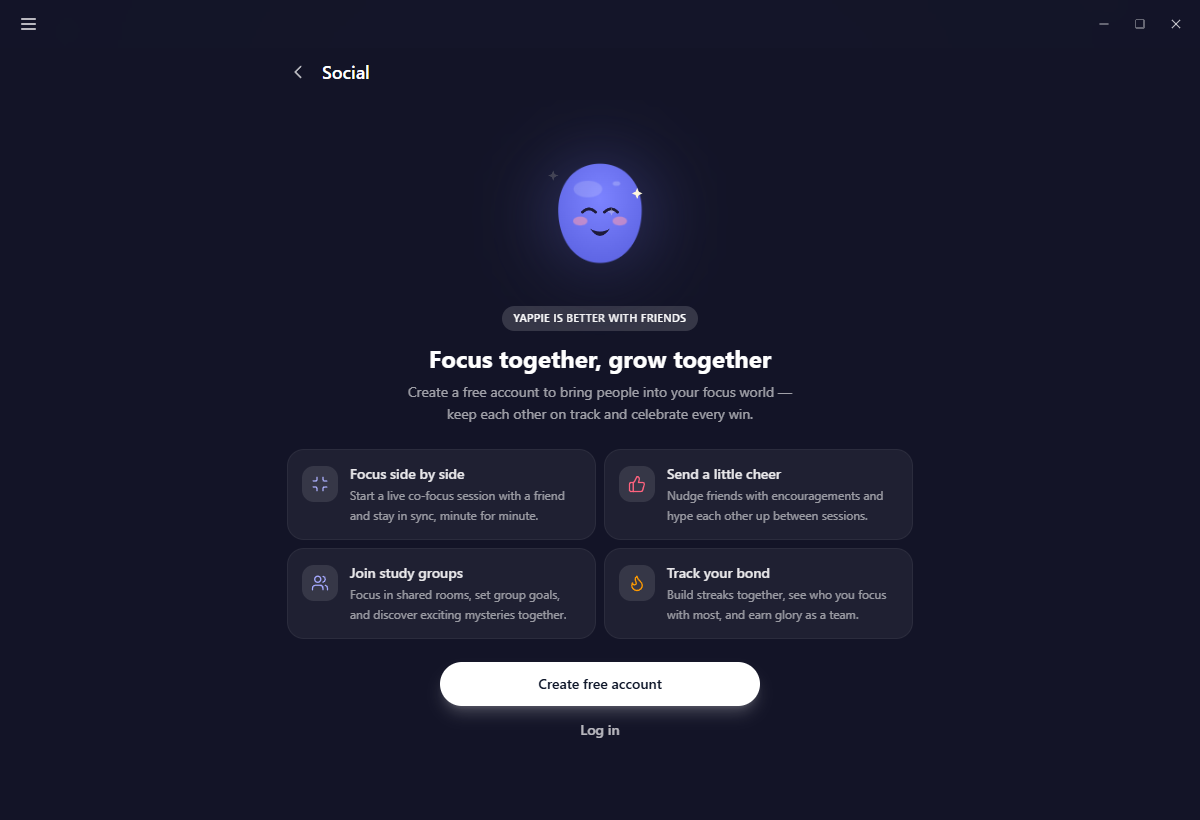
Add a friend
- Open the menu and choose Friends.
- Under Your invite code, click Copy and send the code to them.
- To go the other way, paste their code into Add a friend and click Add.
Accept a request
Requests do not appear on the Friends tab. They live on Notifications, and a line on Friends points you there. Open it, then Accept or Decline. An accepted friend shows up in your list straight away.
Cheer someone on
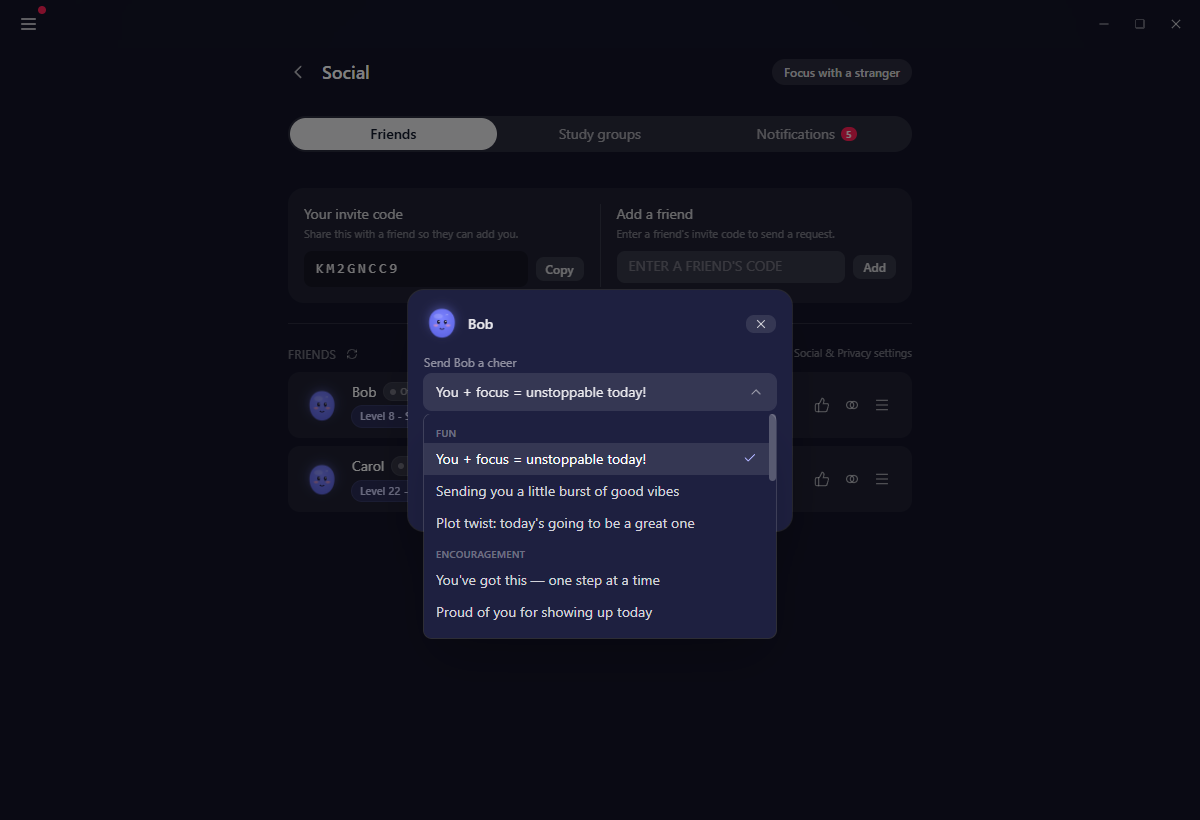
- On a friend's row, or in their profile, choose Cheer them on.
- Pick a mood: Fun, Encouragement, Light humor, Appreciation, Celebration or Check-in.
- Pick one of the short messages inside it.
- Optionally turn on Have my Yappie deliver it in person and choose the face it should arrive with.
- Click Send cheer.
You send a message, not a translation. Your friend reads it in their own language, and the dialog tells you which one that will be. There is a cooldown per friend with a live countdown on the button, and a cheer someone has muted still spends it. See Cheers.
Focus one-on-one
- Choose Focus together on a friend's row or in their profile.
- Pick a length and send the invite.
- They get a card with a countdown on it. Neither timer starts until you are both in.
You cannot accept an invite while your own session is running; finish that one first. Declining can carry a short reason, or a counter-proposal for a longer or shorter sitting. Once you are both there, your two pets share the Focus page, and whichever side pauses gets dimmed with a badge. Only the time you were both actually present counts as shared focus.
Mute, unfriend or block
More on a friend's row holds the rest. Muting is per kind, so you can silence cheers, co-focus invites, or both, without unfriending. Unfriending keeps your cheer history and leaves every hour you focused together counted as your own. Blocking is spelled out point by point in the confirmation before you commit to it.
Focus with a stranger
- Click Focus with a stranger in the header of the Social page.
- Choose how long you want to sit. The slider runs from one minute to ninety and opens at your usual focus length.
- Click Find someone.
A waiting bar takes the bottom of the window with a live clock and a Stop waiting button. You are matched with whoever is waiting, whatever length they picked, so the wait is usually short. You do not have to sit idle either: Start focus on the waiting bar begins a session right there, and a match joins you where you are, with no dialog to answer.
When somebody turns up you both get a card, and neither timer starts until you are both in. On a rest day the dialog warns you first that sitting down with someone marks today as a working day. Full behaviour, including reporting and background rematching, is on Focus with a stranger.
Study groups
Join or create one
Open the menu and choose Study groups. Two list tabs sit at the top, My groups and Public groups.
- Join with a code: paste it into Join a group and click Join.
- Find a public one: switch to Public groups and use Discover public groups, with its search, sort and paging.
- Start your own: click Create a group, name it, and create. You land inside as its owner, ready to share the code from the header.
Set your commitment
- Open the group and click My commitment.
- Set your weekly hours, and daily hours if you want them.
- Save.
It is one commitment per week, so it locks once set and the card tells you when you can change it again. There is a switch for keeping your progress to yourself and counting only toward the group's anonymous totals.
Set the group's goals (owner)
- Open the group and go to Settings → Goals.
- Enter the daily, weekly or monthly target.
- Save.
Goals are calendar-scoped and only editable early in each period: daily and weekly in the first 24 hours of the week, monthly in the first 72 hours of the month. After that they hold until the next period starts, so set them soon after you create the group.
Choose Chill or Hardcore (owner)
Settings → General → Group mode. Chill is the default and hides the leaderboard, ranks, per-member numbers, all-time contributions and the all-hands streak, so everybody focuses together without a scoreboard. Hardcore shows all of it. Switching from Chill to Hardcore asks for confirmation first, because every member is notified so they can decide whether to stay.
Sit in a group room
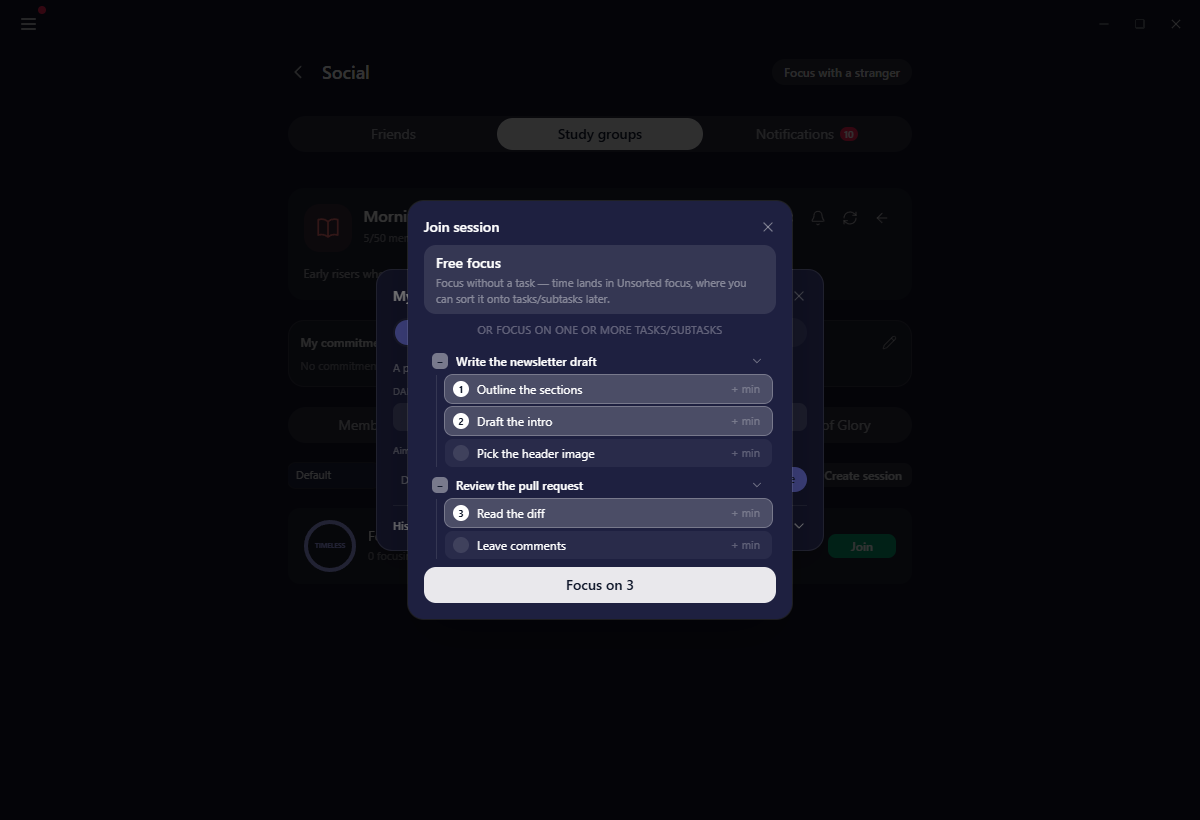
- Open a group and go to Focus sessions.
- Click Join on a live session, or create one.
- Choose Free focus, or tick the tasks and subtasks you want to work through.
- Confirm, and the session takes over your Focus tab.
Ticking a timed item from the checklist draws its minutes out of your Unsorted focus bank, and refuses with a note when the bank is short. Inside, everybody stands somewhere in a drawn room and each pet walks in as its owner joins. The link under the room switches between Room mode and List mode, remembered on this device. Pausing or stopping in a room asks first, because your focus counts as solo from that point rather than shared. See The study room.
On mobile
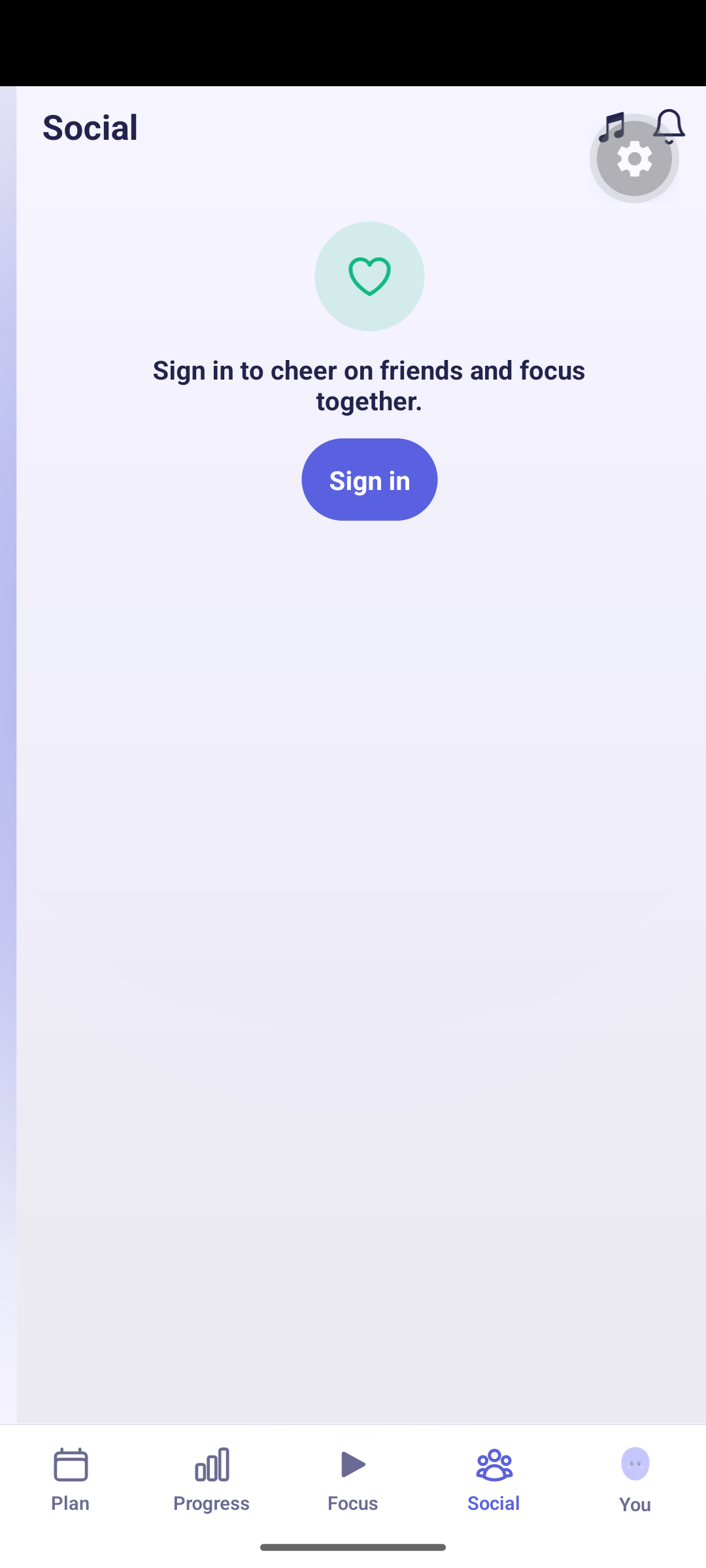
The Social tab holds two segments you can swipe between, Friends and Groups. The co-focus glyph in the header opens Focus with a stranger. Notifications, including friend requests, live behind the bell.
Related
- Friends & co-focus for profiles, privacy and blocking
- Cheers for what the messages are and how they arrive
- Study groups for goals, modes, roles and self-reporting
- Notifications for the one feed everything social lands in
Last updated keskiviikko 21. lokakuuta 2026