Streaming
The stream overlay
A see-through OBS Browser Source with your Yappie, the countdown and your plan.
The stream overlay is a see-through page that OBS shows as a Browser Source. It has your Yappie in your look, the countdown, whether you are focusing or on a break, and your plan. It keeps the same size, it can never show the main Yappie window, and it clears by itself if you close Yappie instead of freezing on the last frame.
Set it up
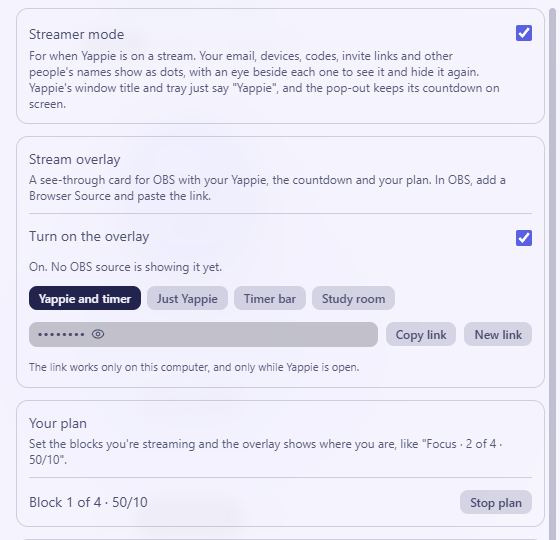
- Open Settings → Streaming. Under Stream overlay, turn on Turn on the overlay.
- Pick a Layout (see below).
- Press Copy link. The link shows as dots while Streamer mode is on, and the eye beside it reveals it for a moment.
- In OBS, add a Browser Source and paste the link into URL.
- Make the source big enough for the layout you picked. The background is see-through.
Under the buttons, Yappie says how many OBS sources are showing the overlay, so you can see it is connected.
To make everything bigger or smaller, add &scale=1.5 to the end of the link. Use any number from 0.5 to 3.
The layouts
The layout is part of the link, so choose it before you press Copy link. You can add several sources with different layouts.
Yappie and timer shows your pet with the countdown and the plan beside it.

Just Yappie is only the pet.
Timer bar is a slim bar for the edge of a scene, with the plan on the left, the time on the right and a thin progress line.

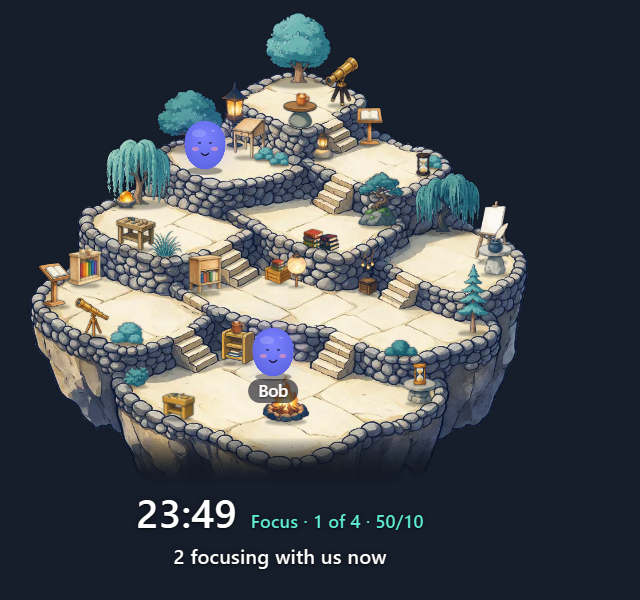
Study room shows the people focusing in your study group's room, and follows the app's own Room / List button (on the pop-out and on the Focus page). In Room, it draws the village:
In List, it draws the pets on a clear background:
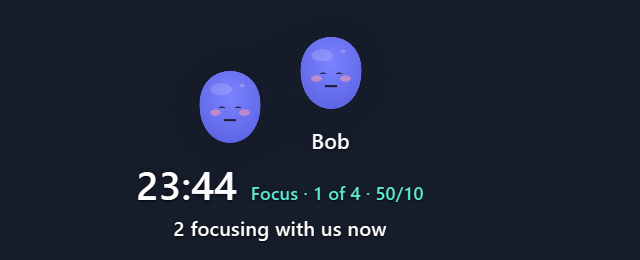
Both show how many are focusing with you ("2 focusing with us now"), the group's daily goal as a bar when it has one ("140 of 300 min"), and how many stars of the shared sky are lit. A first name appears under a pet only when that person has left Show my first name on streams on. Up to 30 pets are shown, then "+12" and so on. The room layout fills in once you are in the group's study room. For how viewers join that group, see Chat commands.
Your plan label
Under Your plan, set the Blocks, Focus (min) and Break (min) you are streaming and press Start plan. The overlay then reads, for example, "Focus · 2 of 4 · 50/10", counting the focus blocks you have finished since you pressed Start plan. Press Stop plan when you are done. With no plan running, the overlay just says Focus or Break.
New link
If the link leaks, or you just want a fresh one, press New link. Yappie asks you to confirm, and then the old link stops working at once. Any OBS source using it goes blank until you paste the new one.
Good to know
- It only works on the same computer as Yappie, and only while Yappie is open. It is not a public web page, and nobody else can open it.
- Nothing personal is on it. No email, no tasks, no names of your own. The only names are first names in the study room layout, for people who allow it.
- If another program is already using the port, Yappie tells you the overlay can't start.
- When you connect the Yappie bot, the pet on the overlay also celebrates follows, subs, raids and Bits. No viewer names are shown.
Last updated 21 oktober 2026