How-to guides
Working with tasks
Add tasks and steps, set times and alarms, and tick things off without losing the focus behind them.
A task in Yappie is an intention, not an entry in a backlog. These recipes cover the whole life of one: writing it down, breaking it into steps, giving it a time, and ticking it off. For what the lists themselves are for, see Today and Tomorrow.
Write it down
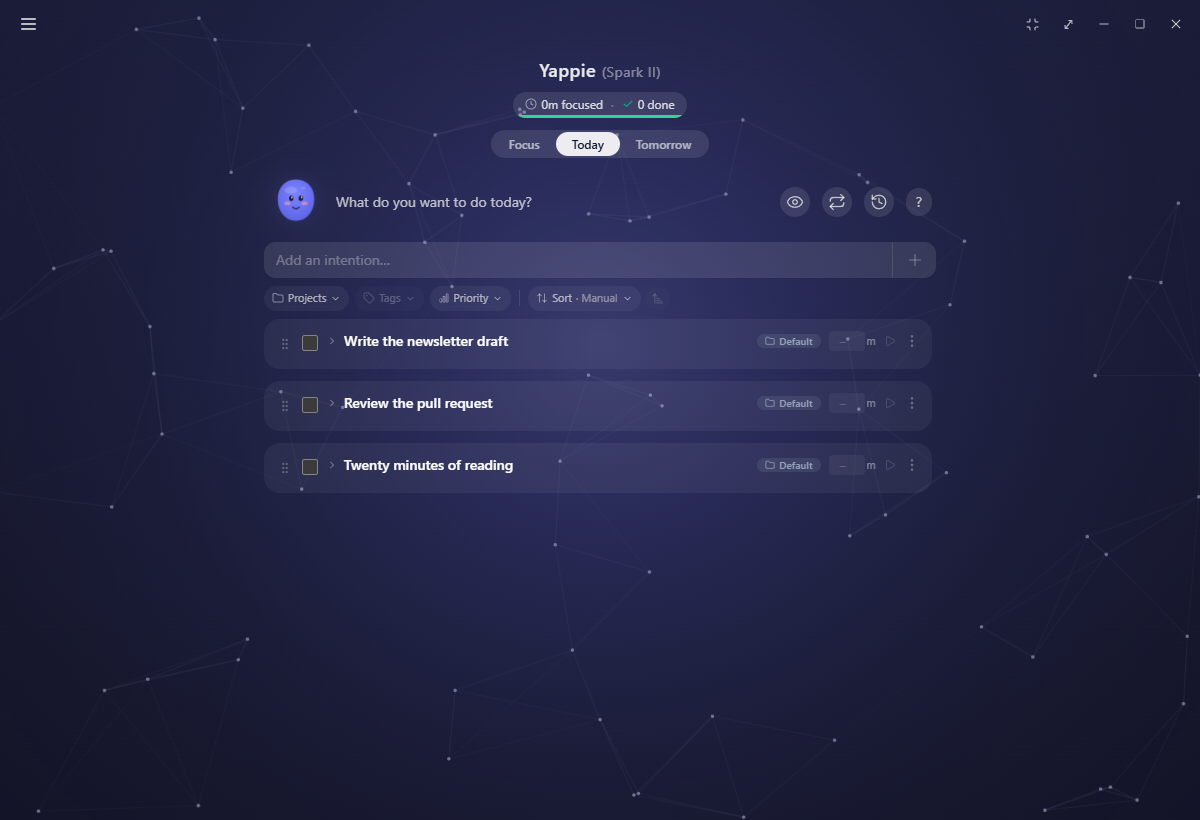
Add a task
- Open the Today tab (or Tomorrow to plan ahead).
- Type into Add an intention….
- Press Enter, or click the + at the end of the field.
The field sits under the greeting, above the filter and sort bar. Both fill the top region of the page, which folds away as you scroll down the list and comes back when you scroll up.
Break it into steps
- Click a task's title to expand the card.
- Type into the add a step field.
- Press Enter, or click the + beside it.
Once a task has steps, the minutes box, the ▶ focus button and the tag picker all move onto each step. The parent keeps the project badge, the priority mark and two summary pills: how many steps are done, and the total planned time.
Let Yappie suggest the steps
- Turn AI on under Settings → AI (see AI companion).
- Expand the task and click the sparkle button beside the add-step field.
- Wait a moment. A short note tells you how many steps were added.
If the title is too vague to work from, Yappie says so in plain words instead of inventing steps, and you can reword and try again. If AI is off, the feature is switched off, or the day's calls are gone, the note explains which of those it was.
Set the minutes
Click the minutes box on a step, or on a task with no steps, and type a rough number. This is a plan, not a stopwatch. It is what the ▶ button counts down, and it is what gets credited if you tick the item off without ever running a timer.
The task menu
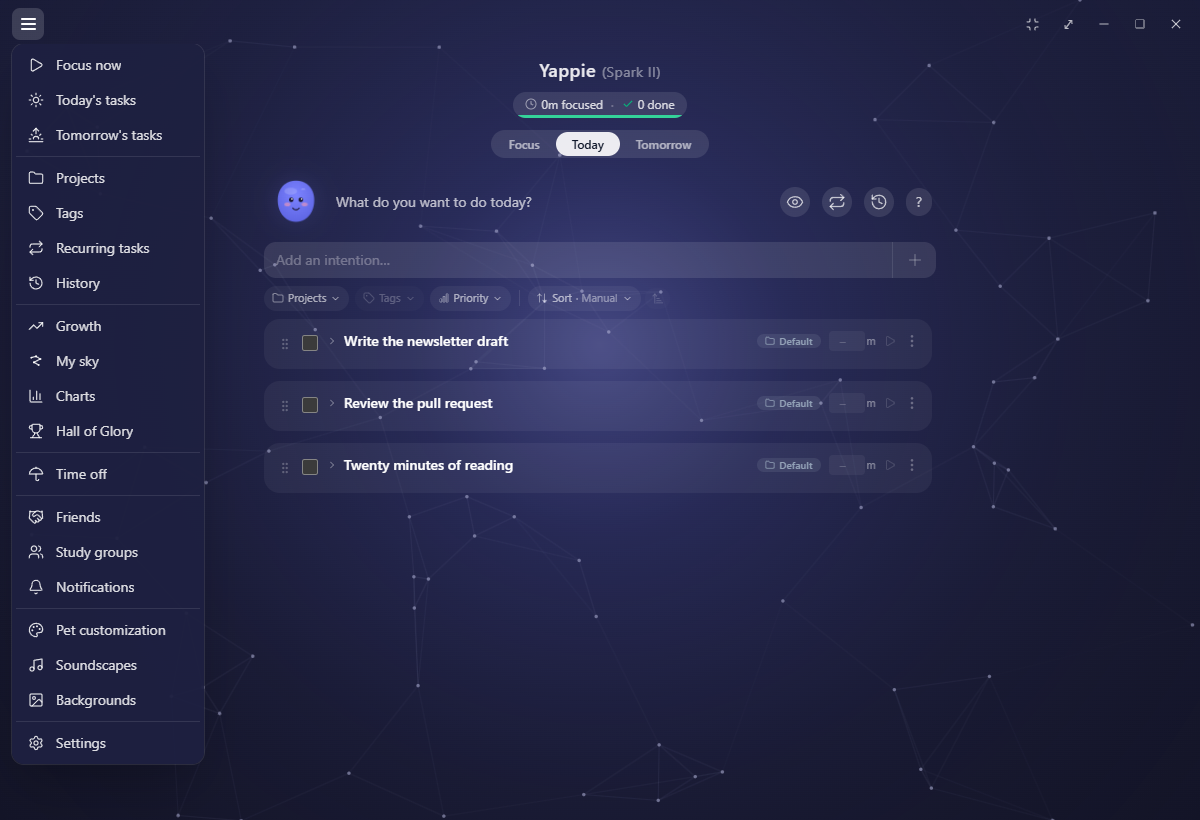
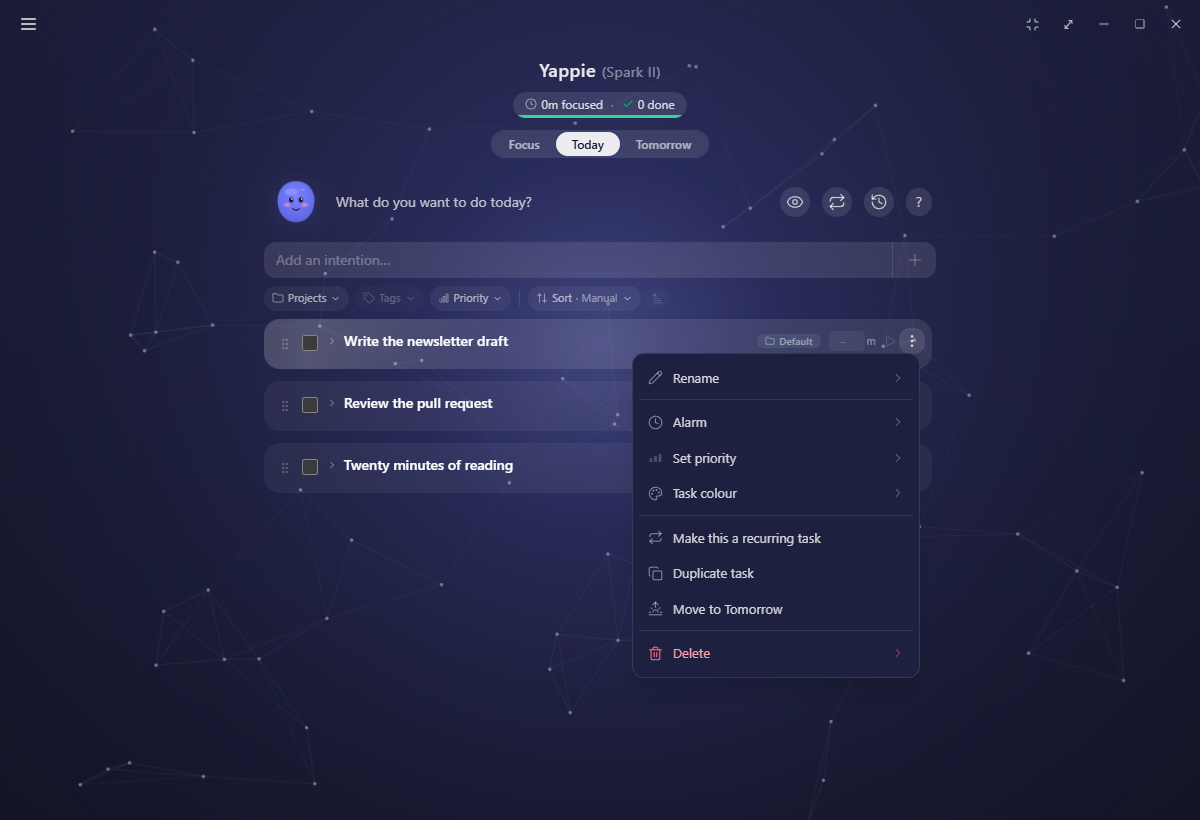
Every card carries one ⋮ button in its top-right corner, labelled Task options. Rename, Alarm, Set priority, Task colour and Delete open as small pages that slide in from the right with a back arrow. Right-click or Escape steps back one layer.
Rename, recolour, set a priority
- Rename opens a field seeded with the current title. Enter saves, Cancel discards.
- Task colour opens Yappie's own picker: preset swatches, a colour square, a hue slider and RGB boxes. There is a No colour option at the top.
- Set priority offers No priority, Low, Medium and High. Anything above none shows as coloured signal bars in the card header.
Set an alarm
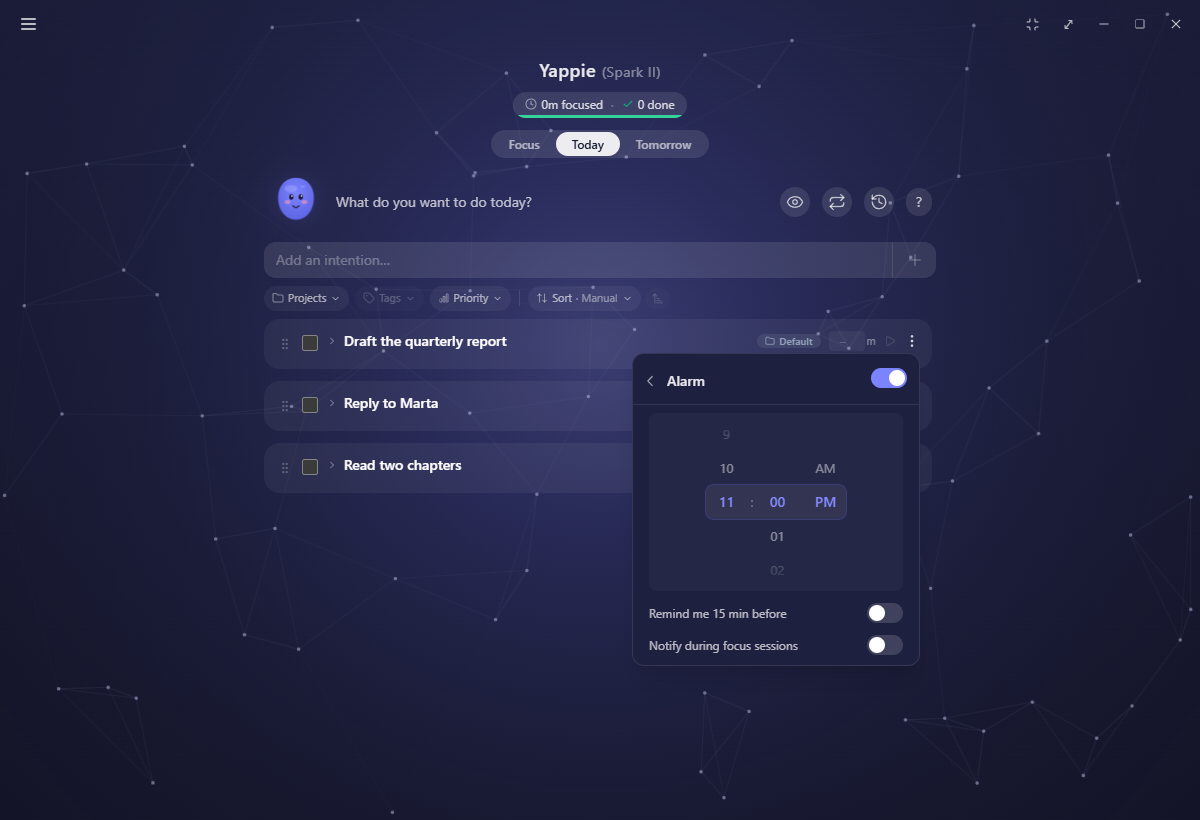
- Open ⋮ → Alarm and turn it on.
- Set the time on the wheel. It has to be later than now.
- Optionally turn on Remind me 15 min before and Notify during focus sessions.
Task alarms are operating-system notifications, so they only fire while Yappie is open. The per-task Notify during focus sessions switch overrides the default in Settings → General; when it is off, an alarm that falls inside a session is held and shown in one summary after the session ends.
Duplicate, repeat, move
- Duplicate task copies the colour, priority, tags, project, planned day, alarm and every step. The copy always arrives unticked.
- Make this a recurring task turns it into one that drops a fresh copy in on the days you choose, starting tomorrow. Set its rhythm on Recurring tasks.
- Move to Tomorrow (or Move to Today from the Tomorrow tab) shifts the whole card. It dims with a tooltip when the target day is time off.
- Delete asks to confirm on its own sub-page.
Steps have their own smaller ⋮ with the short list: Rename, Duplicate and Delete step.
Tick it off
Complete a task or a step
Tick the checkbox on the left. Ticking a task that has steps ticks all of them; when only some are done the box shows a half-check. Finished cards fold up and glide down into a labelled Completed group at the bottom of the list.
You do not need a running timer for this. Ticking something with a set time credits that time as if you had focused it, which is what the ? button beside the greeting explains under the heading "Yappie trusts you". A task with no time is still worth ticking; it leaves the numbers where they were.
Change your mind
Untick it. Any minutes that came from a real focus session, or from your Unsorted focus bank, go back to the bank rather than disappearing. Only time you typed in yourself comes off your totals, because that part never happened. Ticking and unticking repeatedly leaves everything exactly where it started. Deleting a completed task, or editing its logged time down, behaves the same way.
Focus you actually did is never destroyed by a checkbox. It moves to Unsorted focus, where you can pour it onto something else.
Keep the list readable
Reorder
Drag a card by its grip. Dragging only works while Sort is set to Manual, and a card can never cross the line between the unfinished list and the Completed group.
Order is deliberately kept on this device. Where you drag a card, and where a completed one lands, stays on the machine you did it on. The tasks themselves still sync everywhere.
Filter, sort, hide
The bar under the add field filters by Projects, Tags and Priority, and sorts by Manual, Name, Priority, Subtasks or Total time, ascending or descending. Clear resets the lot.
The eye button in the greeting row toggles Hide completed and Show completed, and remembers your choice on this device.
On mobile
The five bar tabs are Plan · Progress · Focus · Social · You, and you can swipe between them. Today and Tomorrow live as segments of the Focus tab, one swipe to the right of the timer.
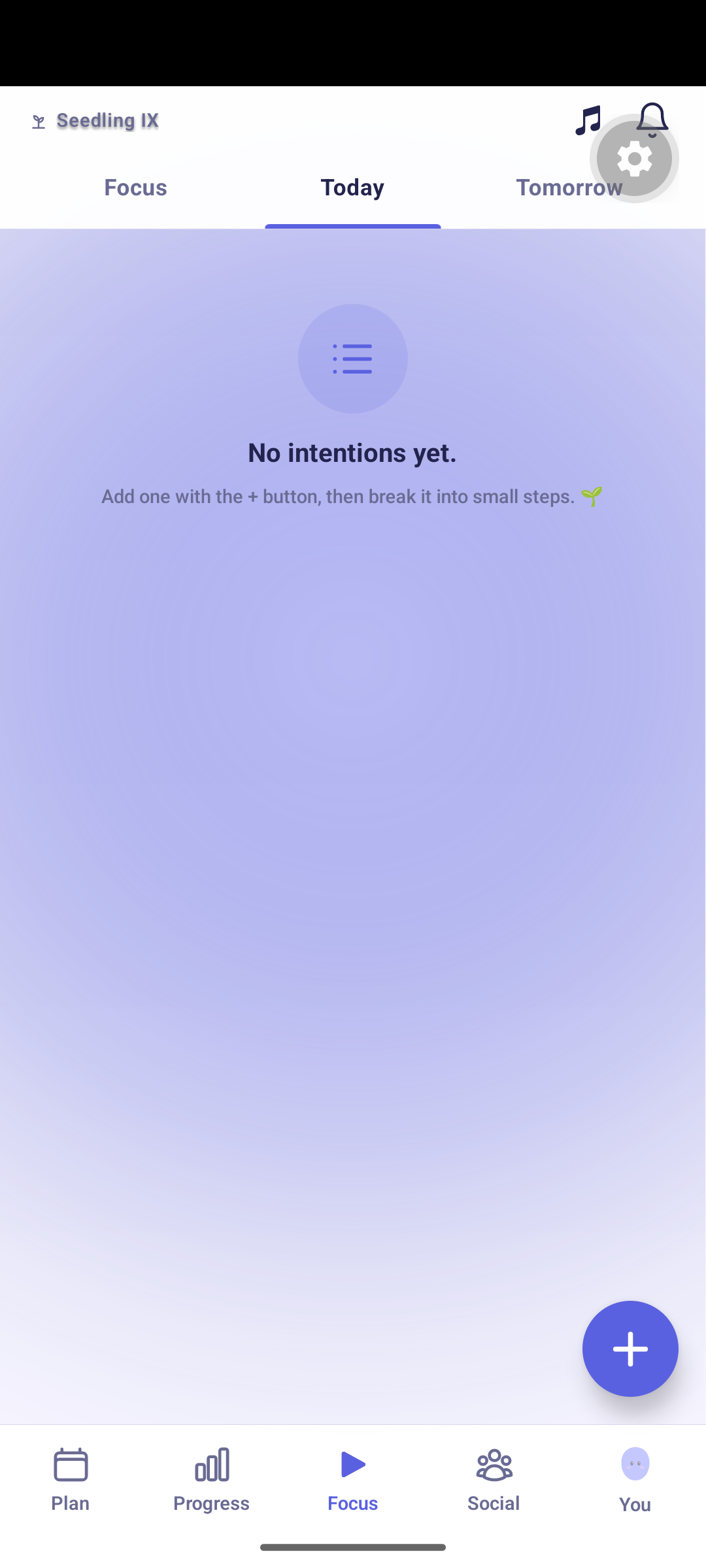
- Add: tap the floating + on Today or Tomorrow and type into the sheet.
- Open: tap a row to open its own page, with Details and Settings tabs you can swipe between.
- Quick actions: tap ⋮ on a row for the Task actions drawer, which holds Rename, Set project, Set colour, priority, time, Alarm, Move, Make recurring, Duplicate and Delete.
- Several at once: press and hold a row to start selecting, then act on the whole selection from the bar that appears.
Related
- Today and Tomorrow for what each list is for
- Recurring tasks for anything you do on a rhythm
- Focusing for putting a timer on one of these
- Organizing for projects and tags
Last updated October 21, 2026