Make it yours
Themes
Ten palettes for the whole app, and one switch that follows your OS.
A theme recolours the whole app: panels, text, buttons, charts. It applies instantly, everywhere, with no restart and nothing to confirm.
The ten themes
The picker is split into two groups by a divider.
Dark: Yappie, Indigo, Dracula, Nord, Catppuccin, Gruvbox.
Light: Yappie Light, Solarized Light, GitHub Light, Latte.
Yappie leads the dark group and Yappie Light leads the light one: they are the same violet brand palette in two moods, which is why the system-matching option below flips between exactly those two.
What you start with
A brand-new install follows your operating system: dark if your OS is in dark mode, light if it isn't. You land on Yappie or Yappie Light accordingly, on that theme's own soft backdrop rather than any artwork.
Change your theme
Desktop
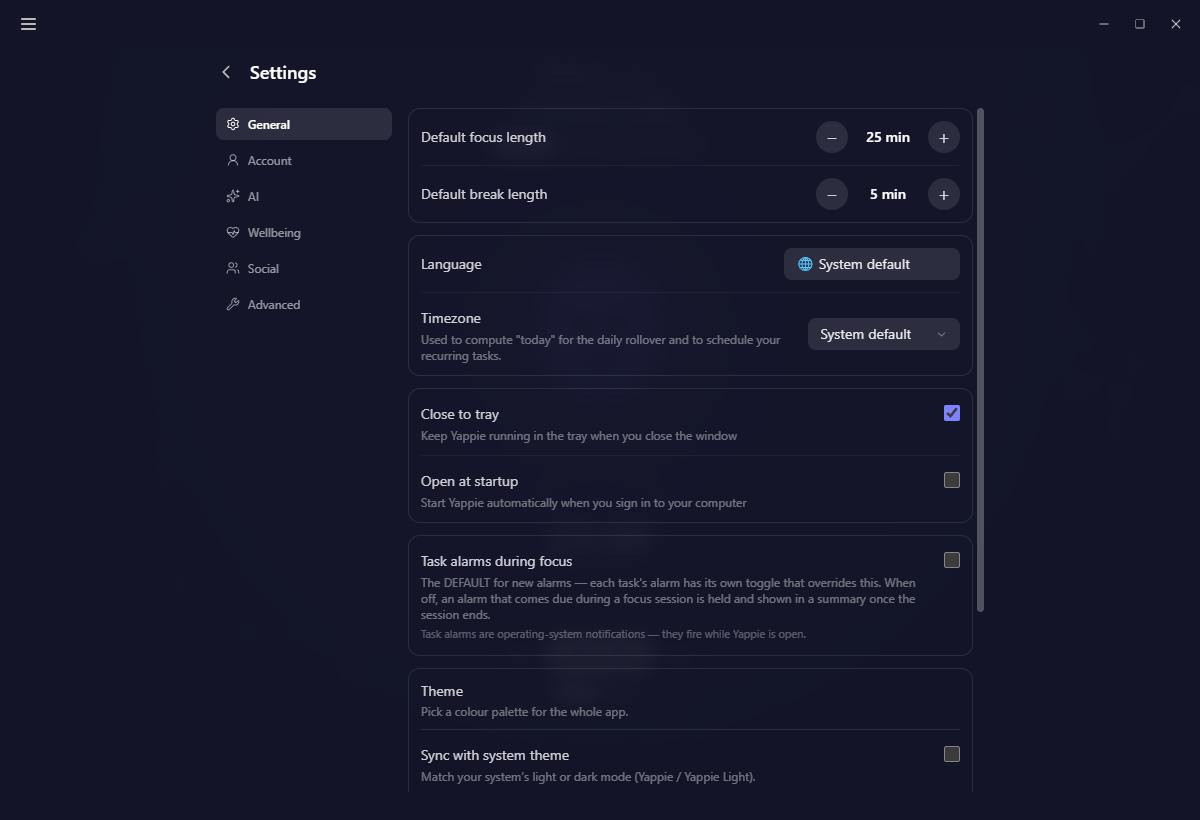
- Open Settings → General.
- Scroll to Theme.
- Pick a swatch.
Mobile
- Go to the You tab.
- Open Appearance.
- Pick a theme.
Follow your system
Above the swatches sits Sync with system theme. Turn it on and Yappie flips between Yappie and Yappie Light live, the moment your operating system does, which is useful if your machine already switches at sunset.
Picking any swatch by hand is an explicit choice, so it turns the checkbox off again.
Themes stay on the device
Your theme is device-local. It is stored on the machine you set it on and never rides sync, which is the behaviour most people want: a dark theme on the laptop you use at night and a light one on the desk by the window. The same is true of your background and of "Sync with system theme", since your operating system's appearance is a per-device thing anyway.
Themes colour the timer too
The soft tint that marks a focus session apart from a break is derived from the theme you are on, not from a fixed green and red. On Dracula a session reads pink and a break cyan; on Nord it is two blues; on Yappie it is violet and a cooler blue. Whichever theme you pick, focus and break stay clearly different from each other and still look like they belong to the same app.
Themes colour the app. Backgrounds change the artwork behind your pet. They are set in different places and neither one changes the other, so you can mix any theme with any scene.
Next: Backgrounds for the scene behind your pet, and Customize your pet for the pet itself.
Last updated 21. října 2026