Focus & tasks
Today
Your live list for the day, the one menu behind every card, and the trust behind a tick.
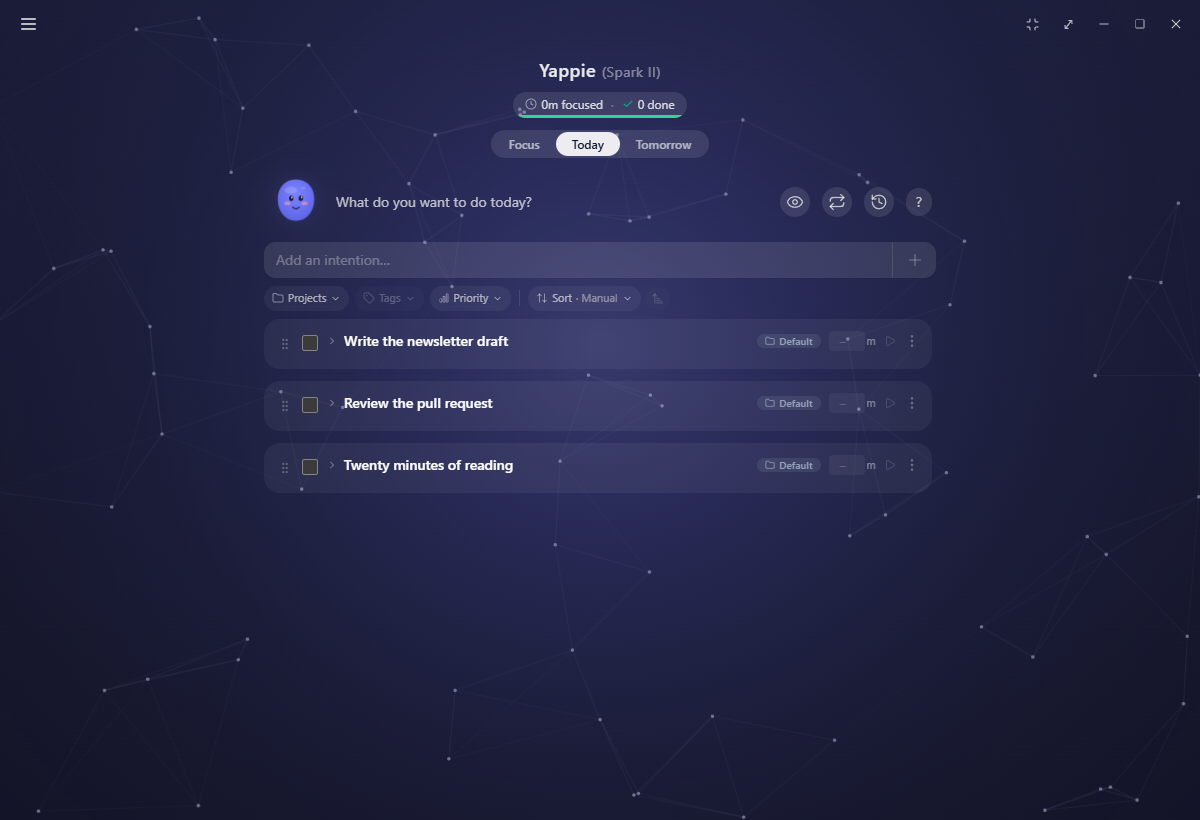
Today is the live list. It answers one question, "What do you want to do today?", and holds the answer where you can see it, focus on it, and tick it off.
Adding intentions and steps
Type into Add an intention… at the top and press Enter, or use the + beside the field. That is a task, or as Yappie calls it, an intention.
Click a card to open it. Inside, an add a step field (with its own +) breaks the task into subtasks, and every step gets its own minute box and its own ▶ to focus on that piece alone. A task with no steps keeps a minute box and a ▶ of its own.
What a card shows
The header carries the project as a coloured badge, a signal-bars icon when a priority is set, and small pills for the step count (3/5) and the total planned time (45m). Tags sit on their own line under the title.
Once a task has steps, its own tag picker goes away and tags live on the steps instead, so you can label the specific piece of work rather than the whole.
The ⋮ menu
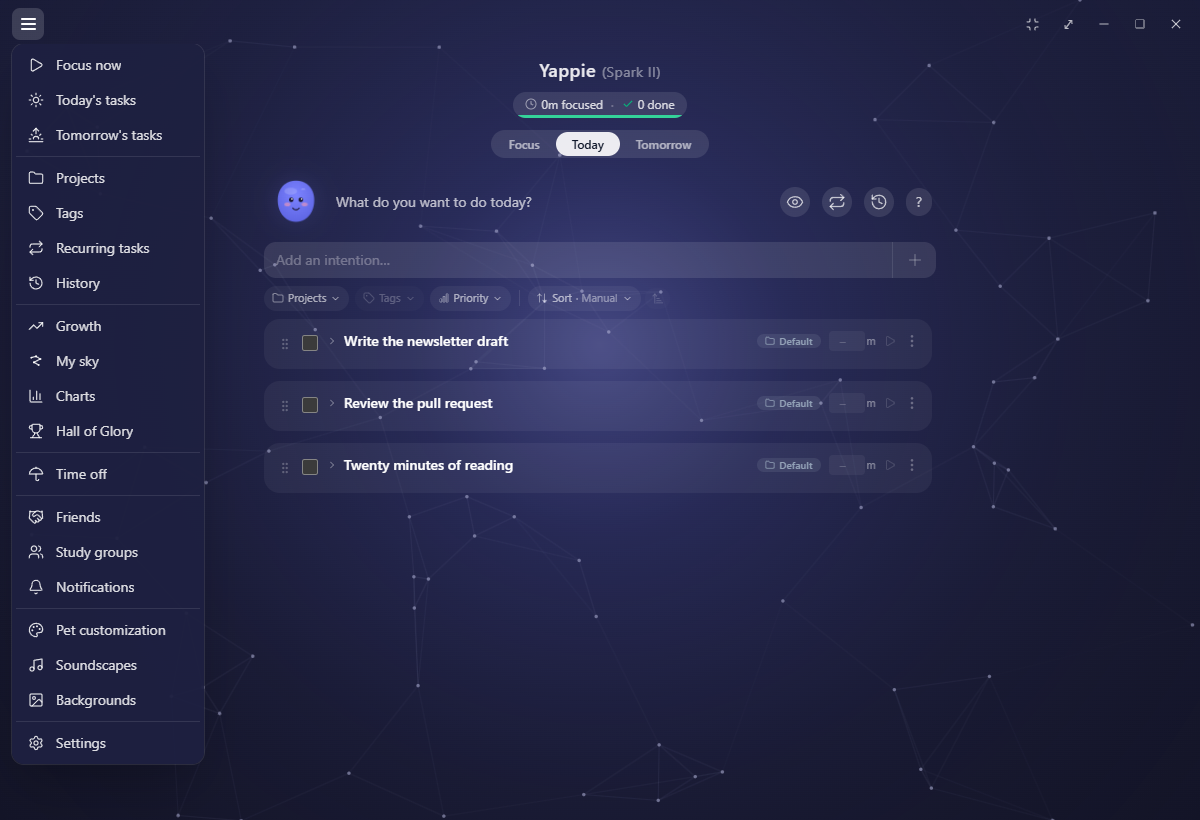
One menu, top right of every card, replaced the old row of little icons. Four entries open as sub-pages that slide in from the right, with a back arrow to return:
- Rename
- Alarm
- Set priority (none, low, medium, high)
- Task colour
Three act straight away: Make this a recurring task, Duplicate task, and Move to Tomorrow. Delete asks to confirm on its own sub-page. Steps get a shorter version of the same menu: Rename, Duplicate, Delete.
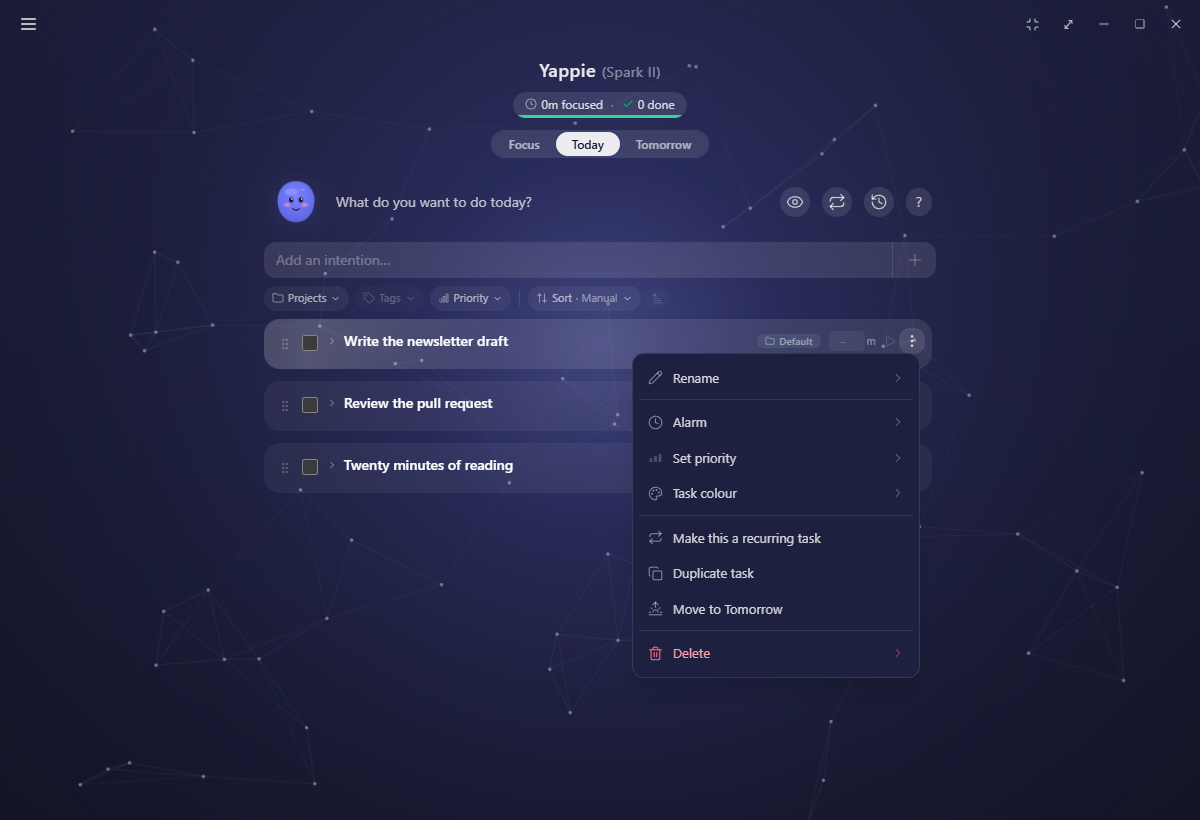
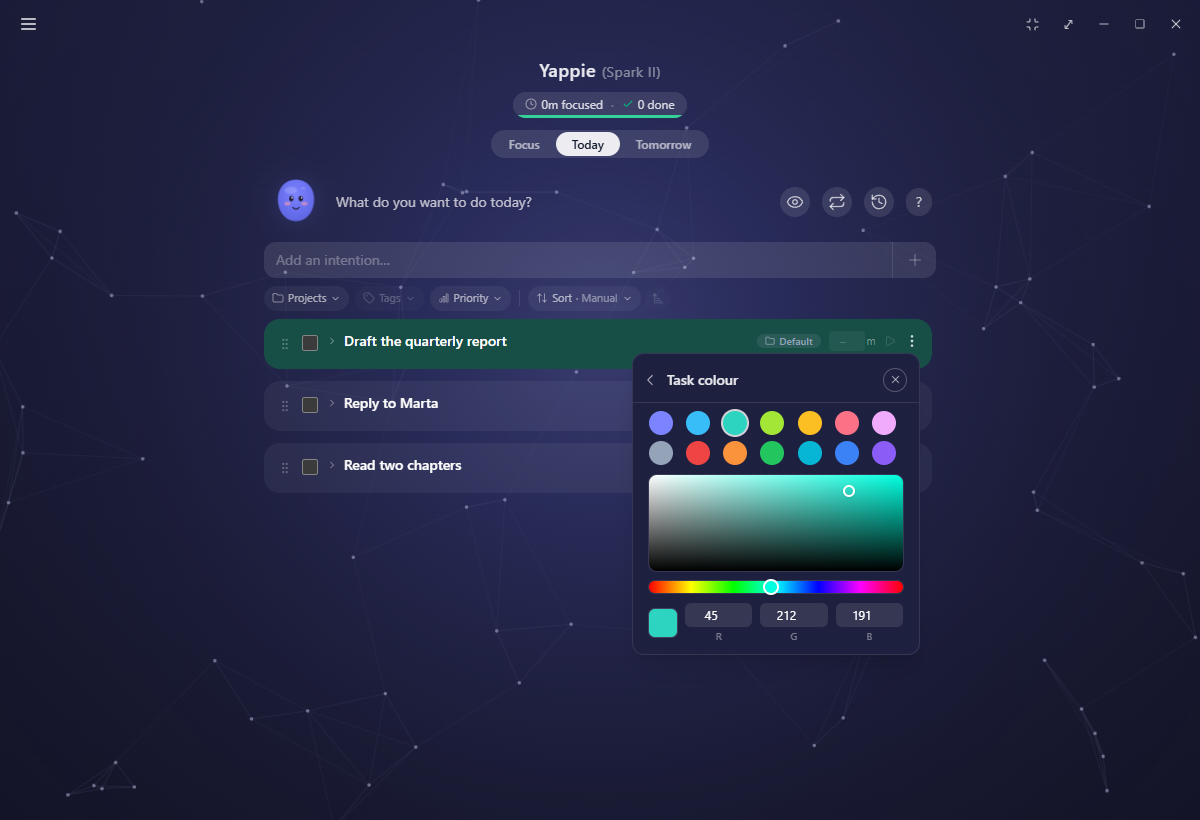
Colour uses Yappie's own picker rather than the operating system dialog, so it matches the app and follows the same back-chevron: preset swatches, a colour square, a hue slider and RGB boxes.
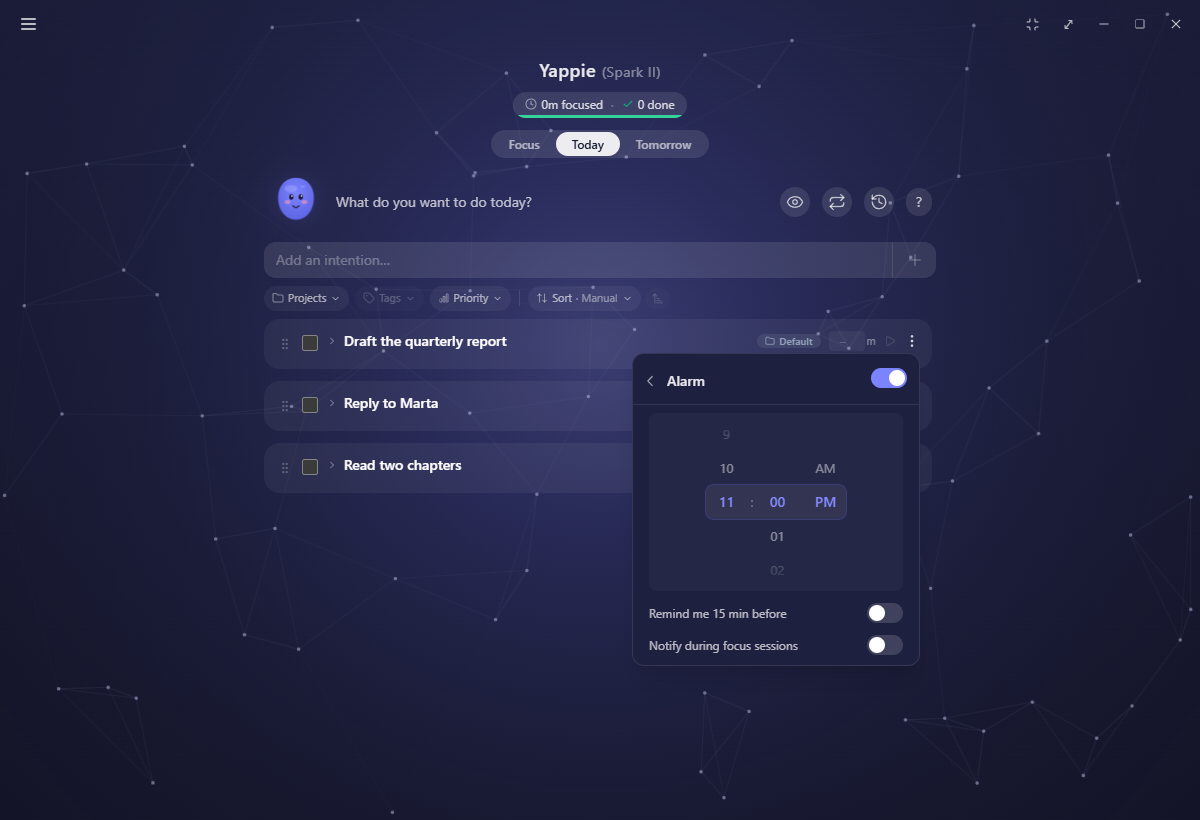
Alarm gives you a time wheel plus two switches for that task: Remind me 15 min before, and Notify during focus sessions, which overrides the default in Settings. Task alarms are system notifications, so they only fire while Yappie is open, and anything held back during a session is summarised once it ends.
Duplicate carries everything: colour, priority, tags, project, planned day, alarm and all the steps. The copy always comes back unticked.
Ticking things off
Every task has a checkbox. On a task with steps it is the aggregate: ticking it ticks all of them, and it shows a half-check while some are done and some are not.
Finished tasks glide down into a Completed group at the bottom, under a heading with the count. You can drag to reorder inside either group, but a drag never crosses between them. The eye icon in the header hides or shows the completed group, and that choice stays on this device.
Yappie trusts you
The ? in the header opens a short explainer, and it is worth reading once. You do not have to run a timer to record progress: tick something you did away from the screen and Yappie credits it as though you had timed it.
Only tasks with a set time move Yappie's energy and growth. A task with no time is still an achievement, and Yappie cheers it on, but the numbers stay where they were.
Changed your mind? Un-ticking reverts the effects. Time a real session measured is not thrown away though: it moves to Unsorted focus instead, still counted, no longer attached to that task.
Sorting, filtering and order
Below the add field sits a bar for shaping the view. Filter by project, tag and priority. Sort by Manual, Name, Priority, Subtasks or Total time, ascending or descending. None of it changes your tasks, only what you are looking at.
As you scroll down the list, the top region (Yappie, the add field and the bar) folds away to give the tasks the window, and snaps back the moment you scroll up.
Your order is device-local. Dragging tasks around, and where a completed one lands, stay on the machine you did it on. The tasks themselves still sync, so finishing something on your phone shows up on your laptop without reshuffling the list you had arranged there.
The morning after
The first time you open Today after a new day begins, a teal notice explains that yesterday's tasks moved to History, unfinished and half-done ones included, with Open History and Do not show again beside it. Nothing was lost, and you can copy anything back. On a rest day the notice stays quiet.
On mobile
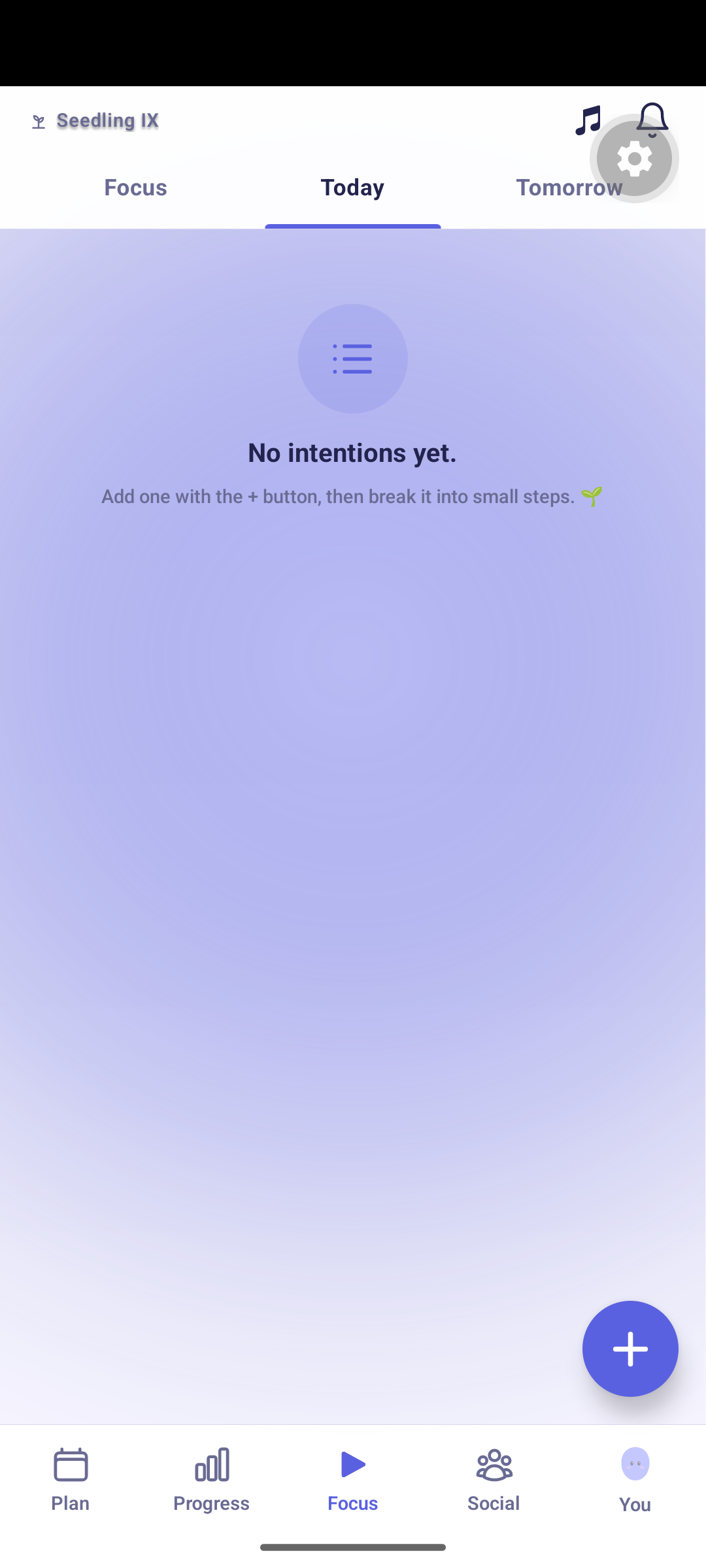
Mobile keeps Today and Tomorrow as segments on the first tab, with a floating + that opens a sheet to add something.
Related
- Focus sessions covers the timer the ▶ starts.
- Tomorrow is the same list, one day ahead.
- Recurring tasks fills Today with the things you do every week.
- Working with tasks has the step-by-step recipes.
Last updated 21 oktober 2026