Make it yours
Backgrounds
The artwork behind your pet, and why a locked sky is not always a paywall.
A background is the artwork behind your pet. It is not a theme: your theme still colours the app itself, the panels and the text and the buttons, whichever scene you pick. The two are independent, and picking a background never changes your theme.
Open Backgrounds
Reach it from Backgrounds in the menu (Desktop) or the You tab (Mobile).
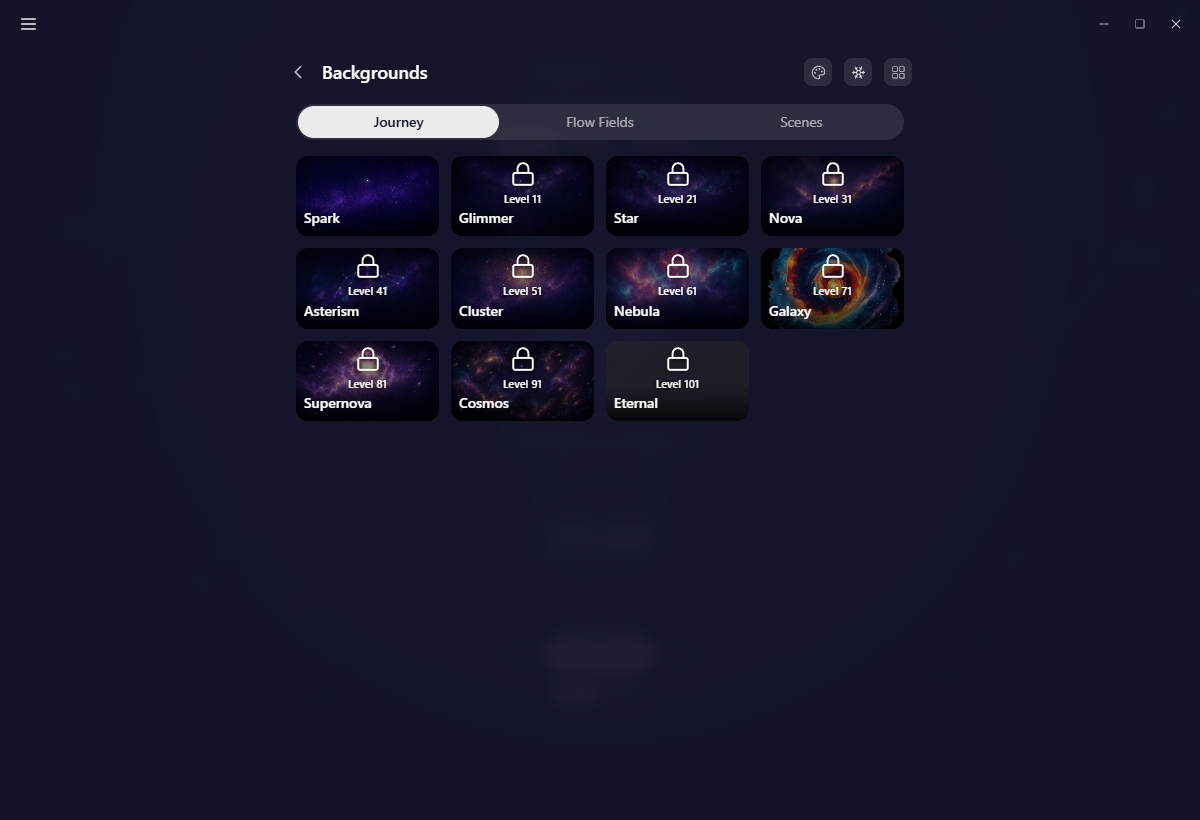
Scenes are grouped into tabs and you see one grid at a time: Journey, Flow Fields and Scenes. Switching tabs slides the grid in from the side you moved toward.
Journey skies are free
This is the distinction worth learning, because the two kinds of lock look similar and mean opposite things.
- A Journey sky is free, and opens by levelling. A locked card shows the level it needs, "Level 41", and tapping it takes you to the Journey page at that tier so you can see what is coming. There is nothing to buy.
- A paid scene carries a coloured tier star for Lite or Super, and tapping a locked one takes you to the upgrade page.
Locked cards still show you a low-quality preview of the artwork, so you can see what you would be getting either way.
Applying a Journey sky brings its unlocked elements with it rather than a flat picture: the stars, moons, comets and nebulae you have earned, each drifting or twinkling on its own. Once one is applied, every element becomes a switch on the Journey page, so you can turn off the ones you would rather not see.
Levelling up does not swap your background. Whatever you chose stays chosen. Journey skies only ever arrive because you asked for one.
Three buttons in the header
- Use the theme backdrop (the palette): no artwork at all, only your theme's own soft procedural sky. It is a toggle, so a second click hands the artwork back. Turning it on clears the applied scene and stops any rotation.
- Freeze background motion (the snowflake): holds the drifting dots, the ripples around your pet and each scene's own motion perfectly still. The focus and break colour shift still plays, because that is a state change rather than movement. It turns itself on when your system asks for reduced motion.
- Rotate the background (the grid): opens the rotation settings.
Rotate through scenes
Want variety without choosing every day?
- Open Rotate the background.
- Tick the scenes you want in the pool.
- Drag the slider to set how often they change, anywhere from 30 seconds to 5 minutes.
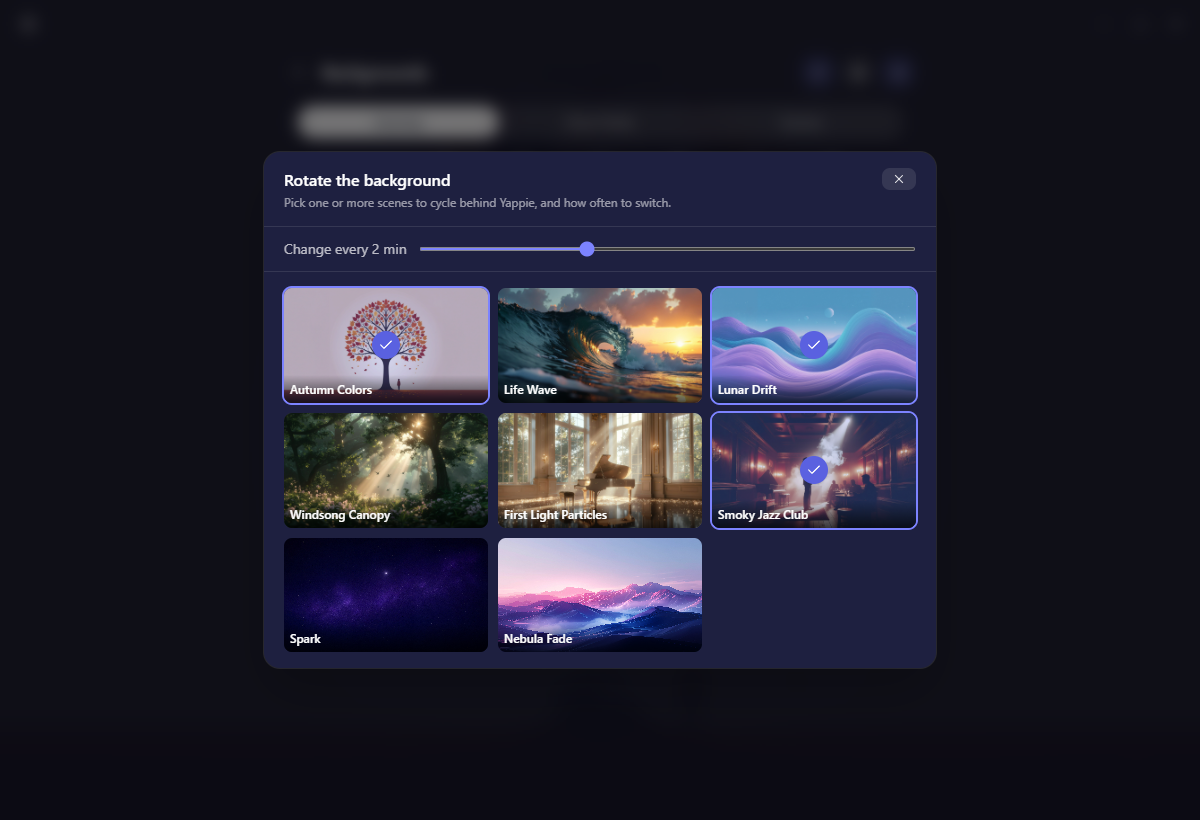
The pool is shared across all the categories, one rotation rather than one per tab, and it is device-local, so a rotation you set up on your laptop stays on your laptop.
The same goes for the scene itself, for the snowflake and for the theme-backdrop toggle: all of them are stored on the machine you set them on and none of them sync.
Matching the sound
On the Soundscapes page and on the player bar there is a Match the background to the soundscape switch. With it on, the scene changes with each track and "use the theme backdrop" turns itself off, since only one thing can drive the background at a time. Turning it back off leaves whatever scene is currently showing.
On mobile
On mobile, the backdrop sits behind the whole app rather than only behind the pet. The same tabs, the same level-gated Journey skies and the same rotation settings are there. A scene your plan does not include sends you to the web to upgrade.
Next: Your Journey for the skies and their elements, Themes for the app's own colours, and Soundscapes for the audio that can drive the scene.
Last updated October 21, 2026