Focus & tasks
Recurring tasks
Reusable tasks that drop a fresh copy into Today on the days you choose.
Recurring tasks are the ones you do again and again. Set one up once and Yappie drops a fresh copy into Today on the days you chose, so your routines look after themselves.
Where they live
Open them from the menu under Recurring tasks, or from the repeat icon in the Today and Tomorrow header. To turn something you already have into one, use a task's ⋮ → Make this a recurring task.
Type a name into the field at the top to add one from scratch. New ones start out daily, so open the card to change the rhythm and to give it steps, tags, a priority, a colour and a time.
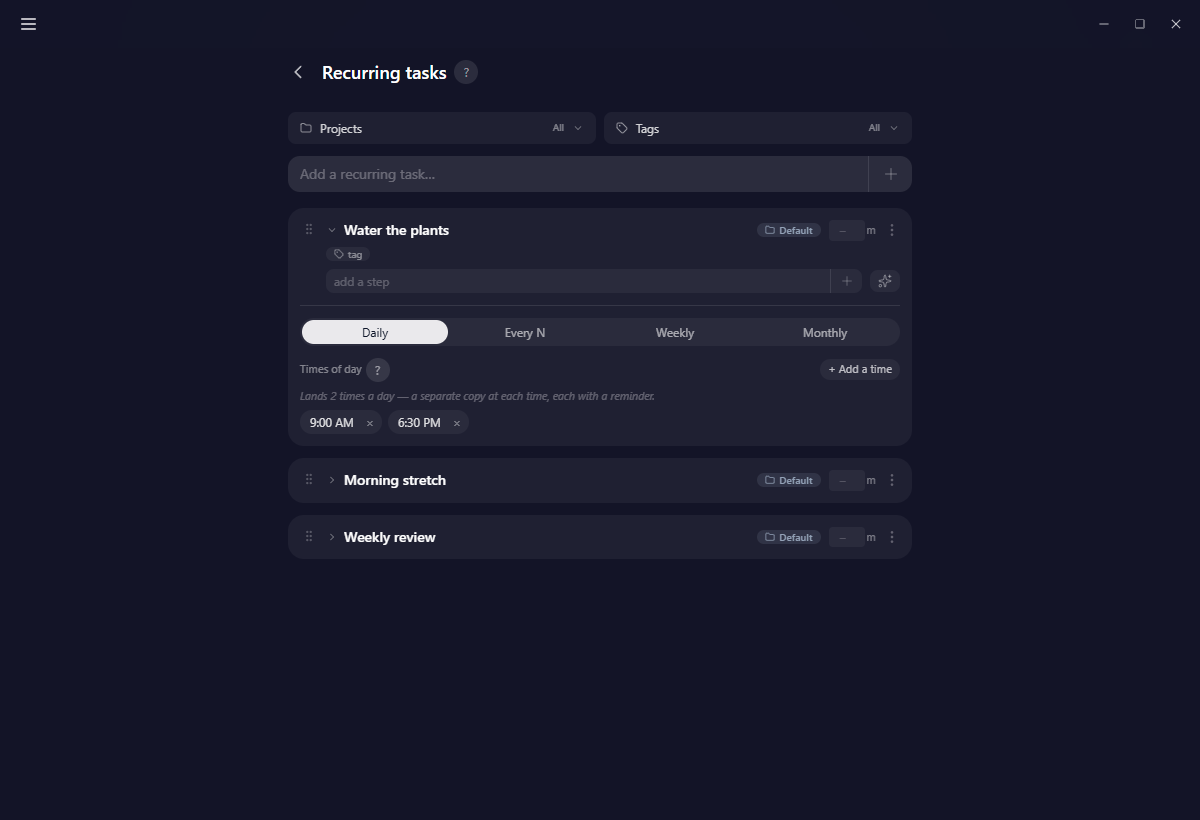
Choosing a rhythm
Four shapes cover most routines:
- Daily for every day.
- Every N days, at a fixed interval.
- Weekly, on the weekdays you pick.
- Monthly, on a day of the month.
Times of day
This is the field that does the most work, and the one people miss.
Add a time and the task lands in Today at that moment, with a reminder. Add several and you get a separate copy at each one, so "Drink water" at 10:00, 14:00 and 18:00 gives you three to tick rather than one you keep re-doing.
Leave it empty and the task appears once at the start of each day it is due, and never reminds you.
Those timed reminders currently only fire while cloud sync is off. On a synced account the task still arrives, but as a single copy at the start of the day rather than an alarm at each time.
Changes take effect from tomorrow
A new recurring task, and every edit to an existing one, applies from tomorrow, never today. That way editing a routine can never disturb the copy you are already halfway through.
You can see the result on the Tomorrow tab, where they appear as read-only previews with a dashed outline.
Want one in Today right now as well? Open its ⋮ menu and choose Add to today now. On a rest day that entry is dimmed, with a tooltip saying why.
Archiving, duplicating, deleting
Every action on a card lives in its ⋮ menu: Rename, Set priority, Task colour, Duplicate, Add to today now, Archive and Delete. Steps have their own smaller menu with Rename, Duplicate and Delete.
- Archive quietly stops a recurring task from spawning without throwing it away. Archived ones gather in their own Archived section at the bottom, with a count and a badge, and you can bring one back from the same menu.
- Duplicate copies the whole thing: rhythm, steps, tags, project, priority, colour and times.
- Delete asks to confirm on its own sub-page, then removes it for good.
Either way, copies it has already put into Today or your History are untouched. What happened, happened.
Unarchiving a recurring task that sits in an archived project cannot work as-is, so Yappie asks what you meant: move it to Default and unarchive it, keep it archived where it is and add an active copy to Default, or cancel.
Rest days pause them
On a day you have declared off, your recurring tasks take the day off too. Nothing spawns, and the cadence of an every N days task is not re-anchored by the skip, so it picks up where it should.
If you tap Actually, I want to work, the day counts as a working day again and your recurring tasks are no longer paused for it. Anything you want right now is one Add to today now away.
Two smaller things
Order syncs here. Unlike Today and Tomorrow, where the order you drag things into stays on the device you did it on, the order of your recurring tasks follows you across devices.
Non-tagged. The tag filter on this page carries a Non-tagged row, on by default, so untagged recurring tasks stay visible while you filter by a tag.
Related
- Today is where the copies land.
- Tomorrow shows the previews before they arrive.
- Projects explains what archiving a project does to the recurring tasks inside it.
- What a rest day looks like covers the pause in context.
Last updated 21 octobre 2026