How-to guides
Personalizing
Your pet's name and face, soundscapes, backgrounds, themes, nudges, AI and sync.
Almost everything about how Yappie looks and sounds is yours to change, and most of it costs nothing. These recipes cover the settings you will reach for most often, from the pet's face to the theme, the nudges and cloud sync.
Your pet
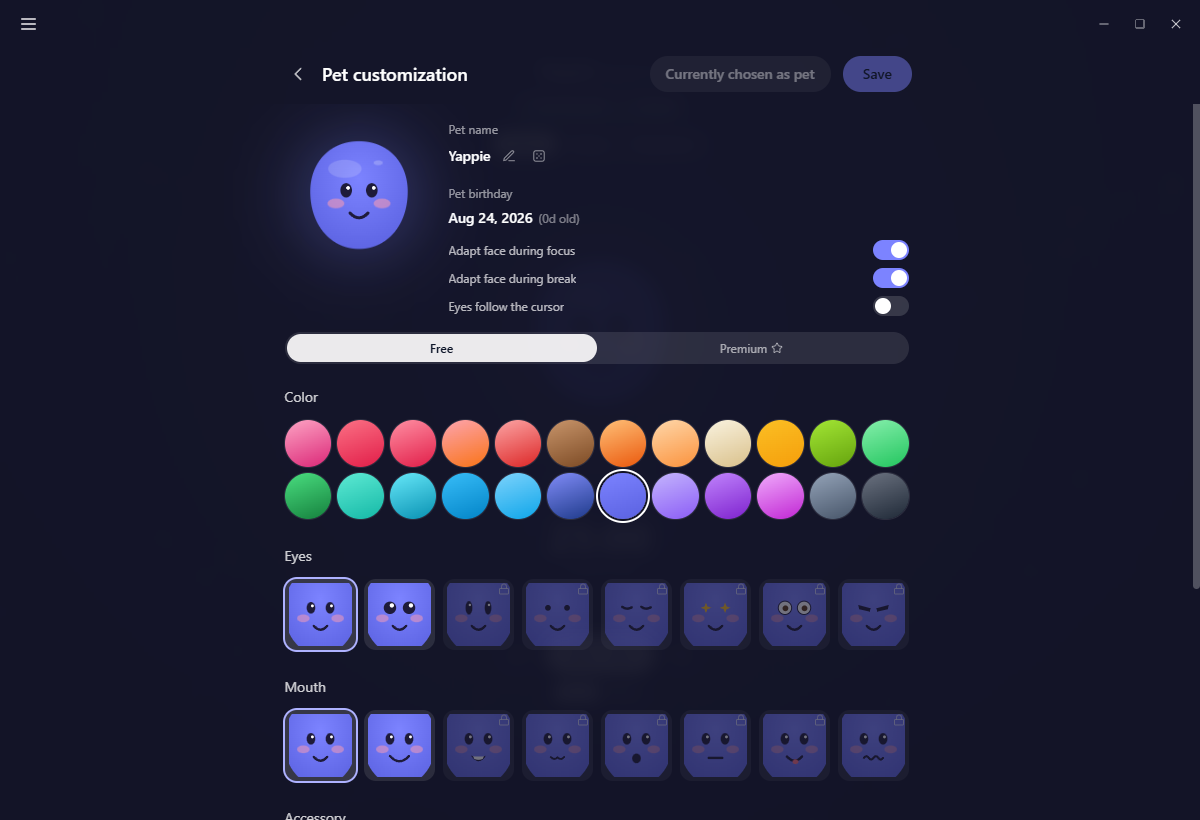
Rename it
- Click your pet's name in the header, or open the menu and choose Pet customization.
- Click the pencil beside the name.
- Type one, or click the dice for a random cute name drawn from your language's own pool.
- Press Enter, or click the check.
Clicking away cancels the edit rather than saving it, so a stray click never renames your pet by accident. Names are screened for anything unpleasant on the device and again on the server when they sync.
Change its look
- Open Pet customization.
- Stay on the Free tab for the 24 body colours, eyes, mouths and accessories, or open Premium for the solid-colour body and the hat and glasses wardrobe.
- Pick what you like. Edits sit in a draft with an Unsaved badge and an undo arrow next to it.
- Click Save in the title row, or Choose as pet to make this look the one Yappie wears.
Everything on the Free tab unlocks by level, not by paying: at level 1 you have the first item of each list, and each level adds another. A locked swatch says which level opens it. Body colours are the exception, and all 24 are yours from the start. The Premium tab needs any paid plan; free accounts can browse it as a preview.
Your chosen look becomes the taskbar or dock icon, and the tray icon, the moment you save it.
Your look unlocks by level, not by price. Only the premium body and the wardrobe need a paid plan.
Three small toggles
Further down the same page: Adapt face during focus, Adapt face during break, and Eyes follow the cursor, which is off by default. All three stay on this device.
Sound and scenery
Play a soundscape
- Open the menu and choose Soundscapes.
- Expand a category and click a track. Categories remember whether you left them open.
- The player bar appears at the bottom and follows you from page to page.
The bar carries play and pause, previous and next, a seek bar, loop, shuffle, volume, Match the background to the soundscape, and a pin. Unpin it and it tucks away when you move the mouse up, so a full-screen background is not covered. Click the heart on a track to save it to favourites; that works signed out too. Free tracks play for everyone.
Pick a background
- Open the menu and choose Backgrounds.
- Switch between the Journey, Flow Fields and Scenes tabs.
- Click a card to apply it.
Three buttons sit in the header: a palette that toggles Use the theme backdrop, a snowflake for Freeze background motion, and a grid for the rotation settings. Picking a background never changes your theme; the two are separate.
Journey skies are free, but they open by level. A locked one shows the level you need and takes you to Your Journey at that tier rather than to an upgrade page.
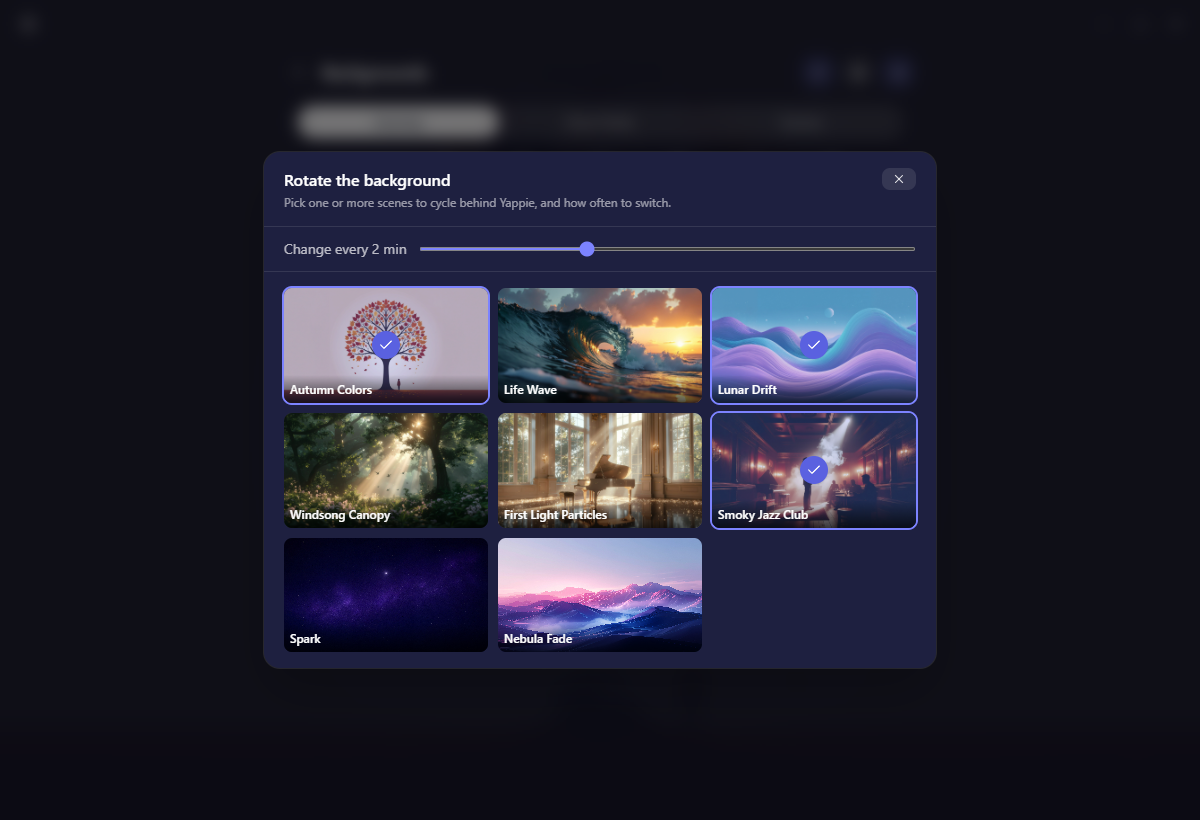
Rotate through scenes
- On Backgrounds, click the grid button in the header.
- Tick the scenes you want in the rotation. They can come from any tab.
- Choose how often to switch.
The rotation is kept on this device.
The app itself
Change theme
Go to Settings → General → Theme. Ten palettes sit in two groups: the dark ones first, with Yappie leading, then a divider, then the light ones with Yappie Light leading. Sync with system theme flips between those two live as your computer changes; picking any swatch turns it off again.
Change language or timezone
Both live in Settings → General. The language list offers 25 languages plus System default, each shown in its own language with a flag. Timezone is a searchable list; it is what "today" means for the daily rollover and for scheduling recurring tasks, and an explicit choice is mirrored to your account so your other devices follow it.
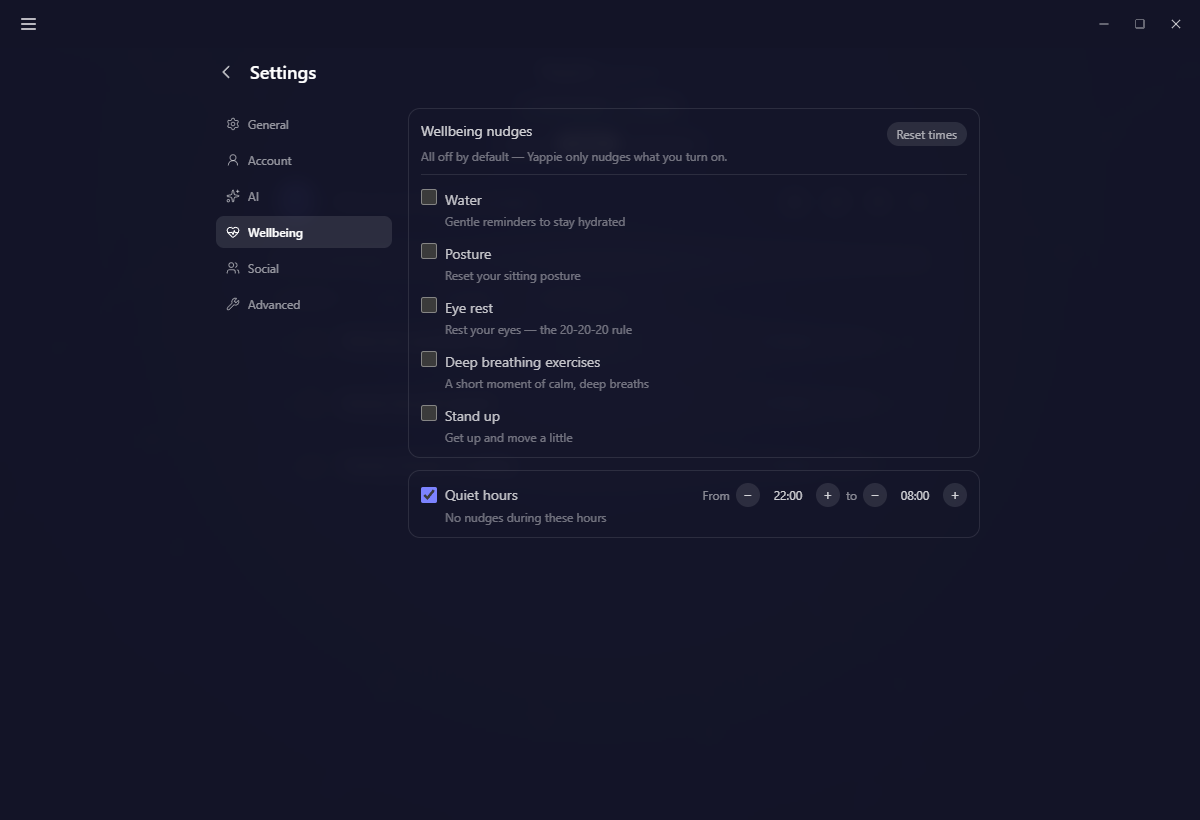
Turn wellbeing nudges on or off
- Open Settings → Wellbeing.
- Switch on any of Water, Posture, Eye rest, Deep breathing exercises and Stand up. All five are off until you turn them on.
- Set each one's interval. Reset times puts every interval back to its default without touching your on and off choices.
- Set Quiet hours if you want the evenings free. They default to on, from 22:00 to 08:00, in half-hour steps.
A due nudge appears as a small thought cloud over Yappie with Done and Not now.
Choose an AI mode
- Open Settings → AI.
- Pick Off, My own key or Yappie AI. The ? explains the three in plain language.
- For your own key, choose Claude, OpenAI or a local Ollama, paste the key and save. It stays in your operating system's keychain, never syncs, and never reaches Yappie's servers.
- Turn on the features you want it for, and use Test connection to check it works.
The mode is per device, so one machine can run on your key while another stays off. Quotas and the rest are on AI companion.
Turn on cloud sync
- Open Settings → Account and sign in.
- Turn on Cloud sync, then use Sync now.
- Unsync stops it again; your data stays on the device.
Cloud sync itself is free. What a paid plan raises is how many devices can stay signed in at once. See Privacy & sync.
On mobile
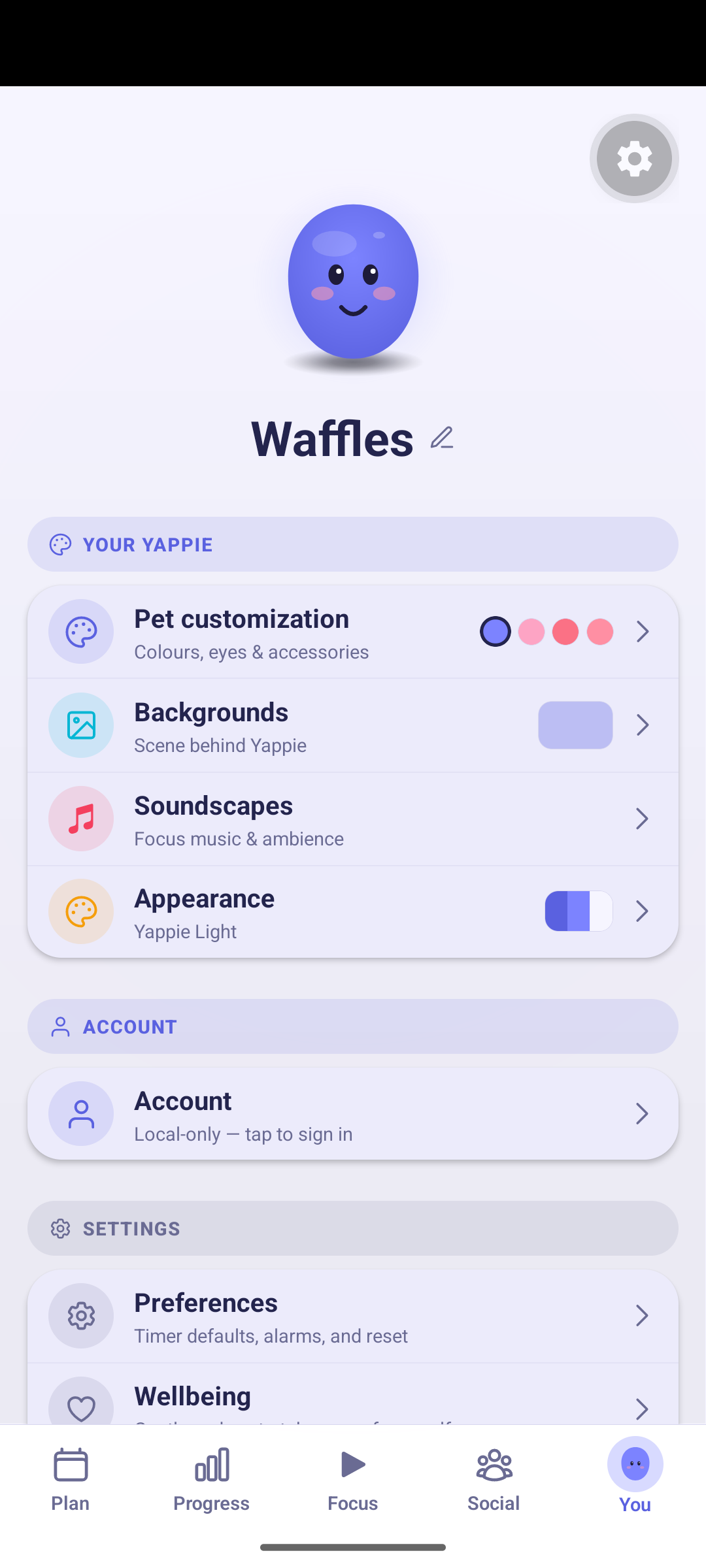
The You tab holds three segments you can swipe between: Customizations, Account and Settings. Pet customization, Backgrounds, Soundscapes and Appearance sit on the first; Wellbeing nudges, AI, Language, Timezone and Time off sit under Settings.
Related
- Customize your pet for the full wardrobe and the unlock ladder
- Playing with Yappie for touch, gaze and keepsakes
- Themes and Backgrounds for what each one changes
- Wellbeing nudges and AI companion for the rules behind the switches
Last updated ২১ অক্টোবর ২০২৬